MANUAL | QUICK START GUIDE
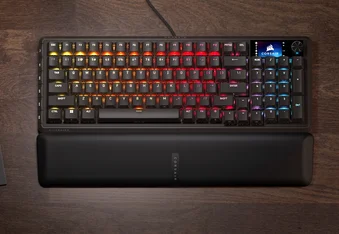
VANGUARD 96 WIRELESS
MECHANICAL GAMING KEYBOARD
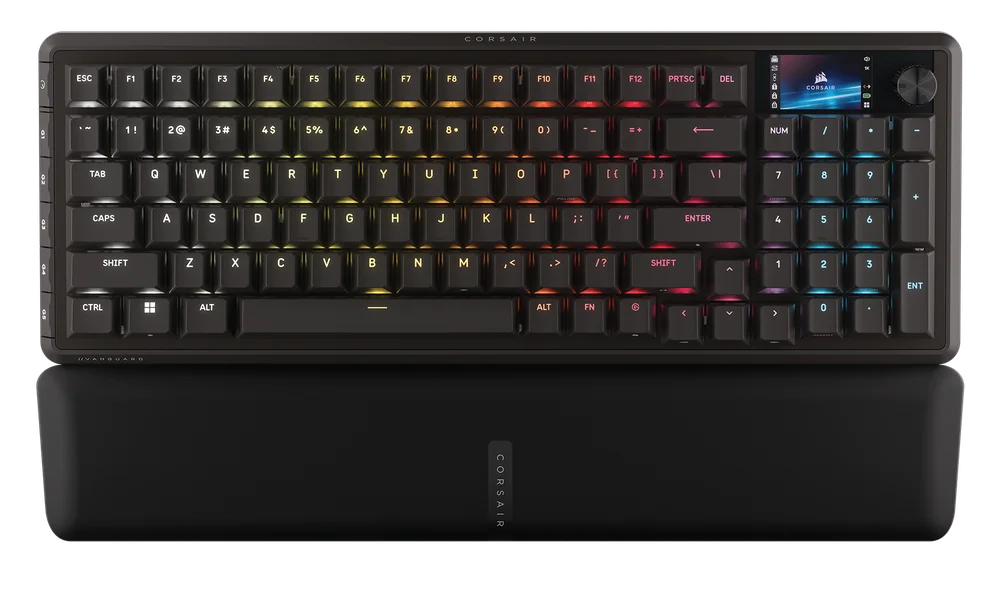
GETTING TO KNOW YOUR KEYBOARD
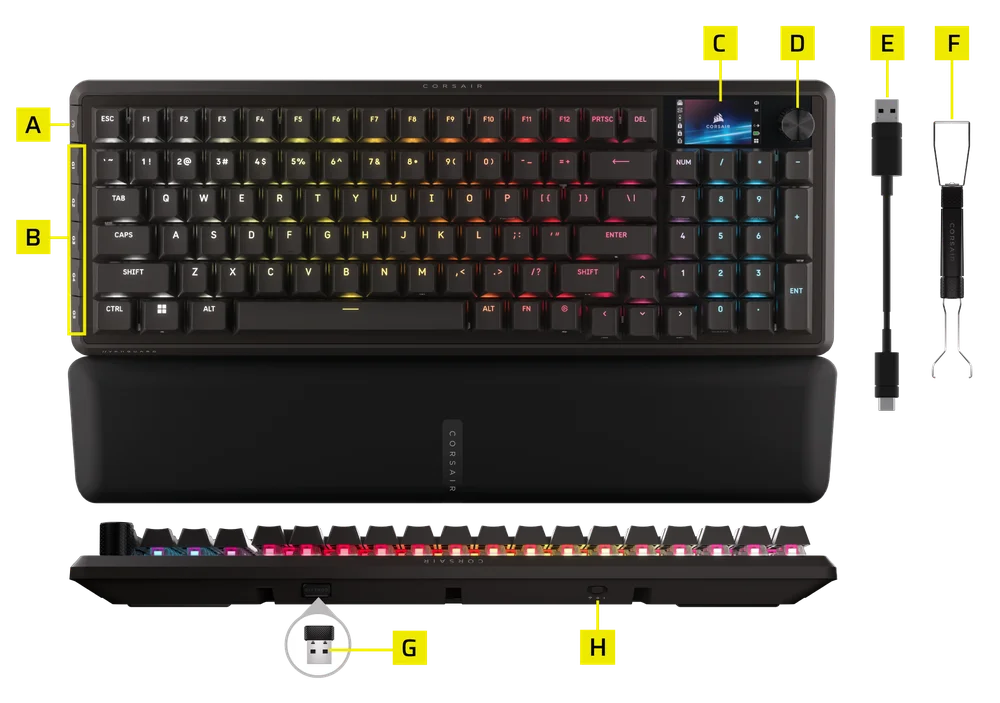
- GAME MODE BUTTON
- G-KEYS
- COLOR LCD SCREEN
- ROTARY DIAL
- DETACHABLE BRAIDED TYPE-C TO TYPE-A CABLE
- 2 IN 1 KEYCAP & SWITCH PULLER
- DONGLE
- CONNECTIVITY SWITCH
TECHNICAL SPECIFICATIONS
| FEATURE | DESCRIPTION |
| Form Factor | 96% |
| Top Cover | Aluminium plate |
| LCD Screen | 1.9" 320x170 IPS |
| Bottom | Plastic |
| Sound Absorbing Foam | PORON |
| Case Foam | Silicone |
| Palm Rest | Magnetic cushioned palm rest |
| Colorway | Black |
| Keycaps | PBT Double shot (BR, SP, ES layout is ABS Paint) |
| Backlighting | Individually LED lit and per-key programmable |
| LED Color | RGB |
| Keyswitches | CORSAIR MLX Plasma mechanical pre-lubricated key switches |
| Connectivity | RF 2.4 Slipstream V2 / BT / Wired |
| Matrix | Full key rollover (NKRO) with 100% anti-ghosting |
| USB Report Rate | Up to 8,000Hz hyper-polling with CORSAIR AXON |
| On-Board Profiles | Add profiles on Web hub (max 5 profiles) |
| Media Control | FN Shortcuts / Rotary dial |
| Game Mode | Hotkey*1 |
| Brightness Control | FN shortcuts / Rotary dial |
| Adjustable Height | Yes |
| Plug and Play Operation | Yes |
| Console Compatibility | Xbox One, Xbox Series X|S, PlayStation 4, 5 |
| Cable | 1.8 m / 6 ft, Detachable braided Type-C to Type-A cable |
| Dimensions | 388(L) x 141(W) x 43(H) mm |
| Weight | 1.167 kg |
| Warranty | Two years – Local country regulations are applicable |


AXON HYPER-PROCESSING TECHNOLOGY
CORSAIR AXON delivers a powerful and responsive keyboard experience with:
- Hyper-fast keystroke detection and processing
- Up to 8,000Hz hyper-polling (adjustable in Web Hub device settings)
- Up to 5-layer onboard lighting effects (programmable in Web Hub per profile)
SETTING UP YOUR KEYBOARD
Connecting the keyboard via wired or wireless mode on a compatible device including:
| Windows PC® | Apple Mac® |
Microsoft Xbox One* Microsoft Xbox Series X | S* |
Sony PlayStation 4** Sony PlayStation 5** |
*Keyboard is compatible out of the box, see corsair.com/xbox-support for details.
**See Connecting to Sony PlayStation section.
CONNECTING TO SONY PLAYSTATION
| SHORTCUT | FUNCTION | INDICATION |
FN+  (Hold for 5 sec) (Hold for 5 sec) |
Switch to PlayStation mode | Blinks white 5 times over 5 seconds |
| FN+ (Hold for 5 sec) |
Switch back to standard mode | Breaths white 2 times |
OPERATING MODES
The keyboard features two operating modes:
- Hardware Mode – When CORSAIR WEB HUB is not running or the keyboard is connected to a device that does not support CORSAIR WEB HUB, the keyboard operates in hardware mode which uses profiles and settings saved to the onboard storage
- Web-based Mode – Go to CORSAIR WEB HUB link https://corsair.com/web-hub, the keyboard operates in Web-based mode, using profiles and settings saved to onboard storage.
| FUNCTION | HARDWARE MODE | WEB-BASED MODE |
| Storage & Profiles | 8MB for up 5 profiles | 8MB for up 5 profiles |
| Create New Profiles | N/A | YES |
| Create Lighting Effects | N/A | YES |
| Create Key assignments | YES | YES |
| Maximum Lighting Layers | N/A | 5 |
* Please ensure your file is in GIF, JPG or BMP format and under 500KB in file size

HARDWARE OVERVIEW
FN SHORTCUTS LIGHTING INDICATOR
When pressing the FN key, all lighting will momentarily turn OFF, excluding keys that have secondary functions and macros assigned to them. Those keys will have backlighting turned ON.
- The default color will be WHITE
- Users can customize the color indication in CORSAIR WEB HUB
Color indication for profile currently in-use will take priority over FN Shortcuts lighting.
GAME MODE BUTTON (A) FUNCTION
Enter competition-optimized setting via one click on Game Mode Button.
| MODE | FUNCTIONS | REMARK |
|
Default Mode (Game Mode Off) |
Game mode off:
|
Factory default |
| Game Mode On |
Game mode on:
|
Can be customized in Web Hub |
ELGATO STREAM DECK
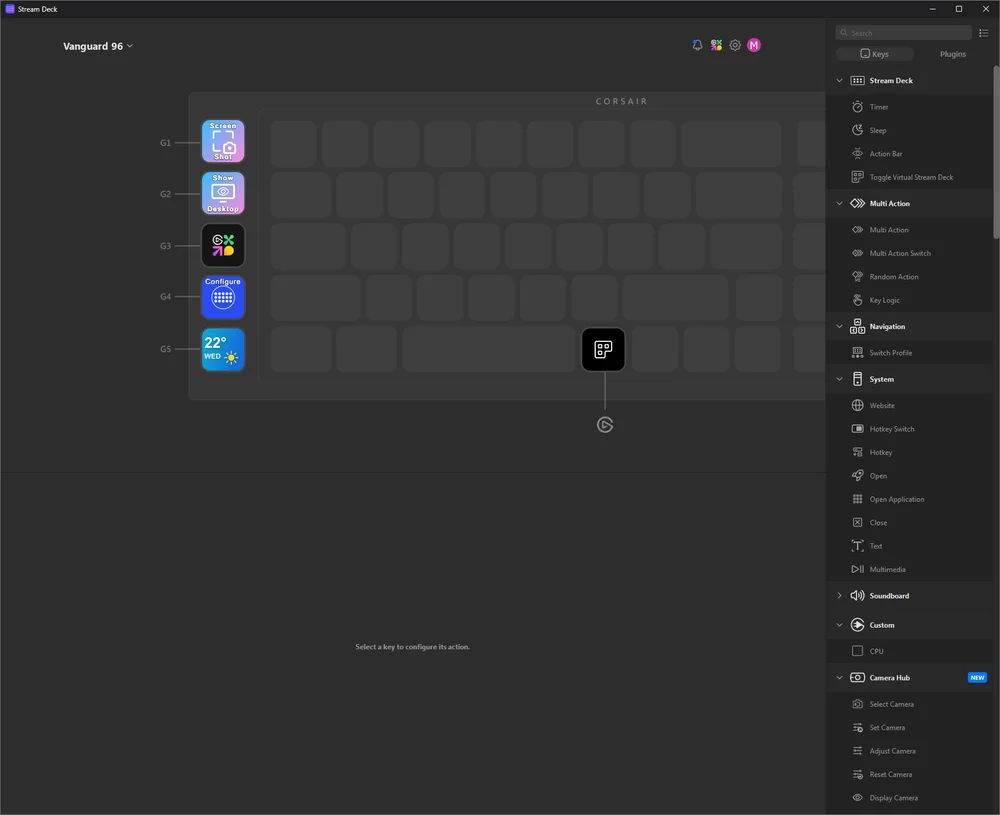
When Elgato software is installed and launched on your computer, it will automatically connect to the keyboard and launch VSD, enabling the five G-keys and the Elgato keys associated with the keyboard, all with their corresponding default functions.
If this does not activate automatically, you can select your device from the drop-down menu in the upper-left corner.
Navigate to the following link to download the software to manage the integrated Stream Deck: https://www.elgato.com/s/downloads
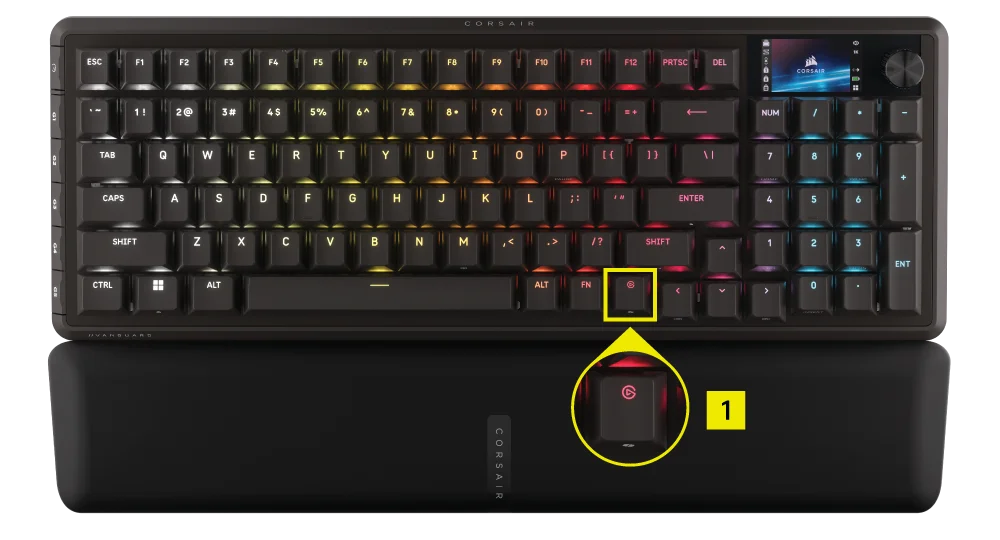
VIRTUAL STREAM DECK BUTTON (1)
STANDARD SHORTCUTS
All below functions assume FN key is being held and action is activated upon press unless otherwise noted.
Default function shortcut, with printed icons.
| SHORTCUT | FUNCTION | DESCRIPTION |
| FN + F1 | Scroll Lock | Press & release to toggle Scroll Lock on and off |
| FN + F2 | Profile |
HW mode: Cycle through onboard profiles SW mode: cycle through iCUE profiles |
| FN + F3 | Decrease Brightness | Press to cycle through brightness levels (decreasing) |
| FN + F4 | Increase Brightness | Press to cycle through brightness levels (increasing) |
| FN + F5 | Stop Track | Stops currently playing media |
| FN + F6 | Last Previous Track | Skips back to last played track in playlist |
| FN + F7 | Play / Pause | Toggles playing and pausing media |
| FN + F8 | Next Track | Skips forward to next track in playlist |
| FN + F12 | Dial Mode | Cycle dial modes |
| FN + M | Enter Macro Recording Mode | Enter macro recording mode |
| FN + Enter | Screen Action | Selection action in the widget |
| FN + Left | Screen Left | Switch to widgets previous widget |
| FN + Right | Screen Right | Switch to widgets next widget |
| FN + Win | Win Lock | Toggles Win Lock on and off |
| FN + Win for 5 sec. | PS Mode | Enter / exit PS mode |
| FN + R-Shift | FlashTap | Enable / disable FlashTap |
| FN + F9 | Volume Mute | Mute the system |
| FN + F10 | Volume Down | Volume down |
| FN + F11 | Volume Up | Volume up |
| FN + P | Pause | Pause |
| FN + 7 (numpad) | Home | Home |
| FN + 1 (numpad) | End | End |
| FN + 9 (numpad) | PgUp | Page up |
| FN + 3 (numpad) | PgDn | Page down |
| FN + 0 (numpad) | Insert | Insert |
| FN + Elgato Key | Copilot Key | Activate Copilot in Windows |
| FN + - (numpad) | BT1 | Switch to BT device 1 (hold keys for 2 seconds to enter paring mode) |
| FN + + (numpad) | BT2 | Switch to BT device 2 (hold keys for 2 seconds to enter paring mode) |
| FN + Enter (numpad) | BT3 | Switch to BT device 3 (hold keys for 2 seconds to enter paring mode) |
| FN + Del | RF Pairing | Press FN + Delete for 2 seconds to enable pairing mode |
MACRO RECORDING / CLEARING NOTES
- Enter macro recording: Hold FN + M key -or- Press dial in MR mode (Indication: Indicator breathes red )
- Press any series of standard keys to begin recording
- Stop recording macro: Press FN + M key -or- Press dial (Indication: Indicator blinks red)
LIGHTING SHORTCUTS
| SHORTCUT | LIGHTING EFFECT |
| FN + ` | Current HW Profile Lighting |
| FN + 1 | Horizon |
| FN + 2 | Watercolor |
| FN + 3 | Spiral Rainbow |
| FN + 4 | Rainbow Wave |
| FN + 5 | Type Lighting Key (random color) |
| FN + 6 | Type Lighting Ripple (random color) |
| FN + 7 | Color Shift (random color order) |
| FN + 8 | Color Pulse (random color order) |
| FN + 9 | Color Wave (random color order) |
| FN + 0 | Static Color |
| FN + - | Reduce Effect Speed |
| FN + = | Increase Effect Speed |
| FN + [ | Rotate Effect Left |
| FN + ] | Rotate Effect Right |
FACTORY RESET
Hold ESC key for two seconds while device is plugged in to erase onboard memory profiles and restore factory default settings.
PLAYSTATION MODE
- By holding FN + Windows key for 5 seconds, FW will change to PlayStation mode from standard mode
- To go back to standard mode from PlayStation mode, hold FN + Windows key for 5 seconds
- When entering PlayStation mode, Windows key indicator blinks white 5 times over 5 seconds when switching mode
- When changing to standard mode from PlayStation mode, Windows key indicator breathes white 2 times over 2 seconds when switching mode
In PlayStation mode, the output is limited to:
- 13-keys + 7 modifier keys (RCtrl, LAlt, LShift, Windows, AltGr)
- Media keys
The actual polling rate may differ from the setting, due to PS USB interface limitations.
BIOS MODE
- By holding B and S keys while plugging in power via USB, FW will change to BIOS mode
- To get back from BIOS mode to standard mode, hold ESC key while plugging in power via USB (this will clear EEPROM, but does not perform factory reset)
In BIOS mode, the output is limited to:
- 6-keys + 5 modifier keys (RCtrl, LAlt, LShift, Windows, AltGr)
- Fixed at 125Hz polling rate
- No media key output
BATTERY REMOVAL INFORMATION
This product uses a rechargeable battery and safety guidelines must be followed in the event that the product is disabled for disposal and recycling. To safely remove the battery for disposal and recycling, follow the numbered steps with the below diagrams.
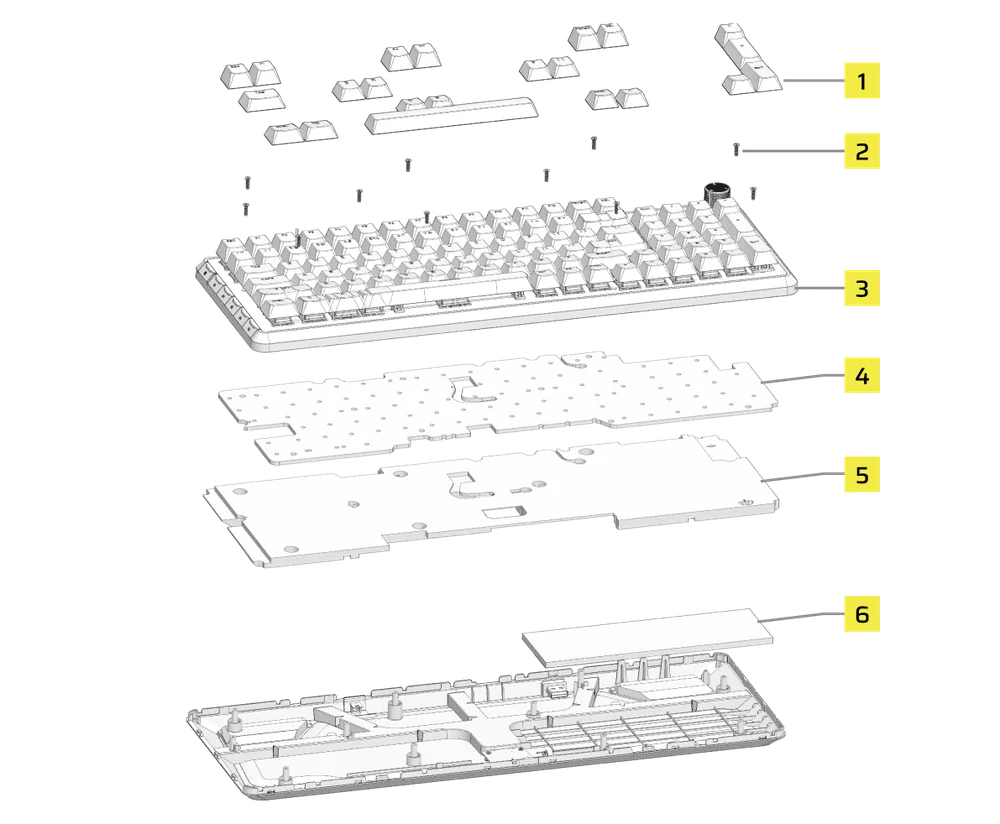
- Remove 21 key caps (ESC/F1/F6/F7/PRTSC/DEL/TAB/E/R/P/[{/V/B/CTRL_L/WIN/SpaceBar/CTRL_R/</-/+/ENT)
- Remove 10 screws
- Remove top cover module
- Remove poron
- Remove silicone
- Remove battery
CORSAIR MEMORY, Inc. encourages customers to recycle used electronic hardware and rechargeable batteries in accordance with local laws and regulations.
BATTERY INFORMATION
- M/N (型號): 3652160
- Capacity (電池容量): 3.7V, 4200mAh, 15.54Wh
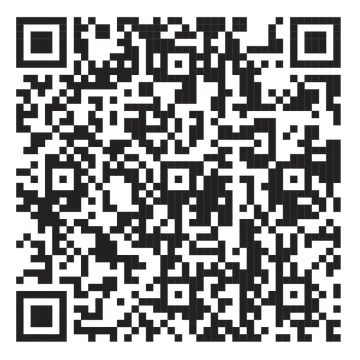
- Scan QR code for battery details
Keyboard
M/N (型號): RGP0173
Rating (電壓電流): 5V  1.5A
1.5A
Dongle
M/N (型號): RGP0177
Rating (電壓電流): 5V 0.1A
FCC ID: 2AAFM-RGP0173 (Keyboard)
FCC ID: 2AAFMRGP0177 (Dongle)
IC: 10954A-RGP0177 (Keyboard)
IC: 10954A-RGP0177 (Dongle)
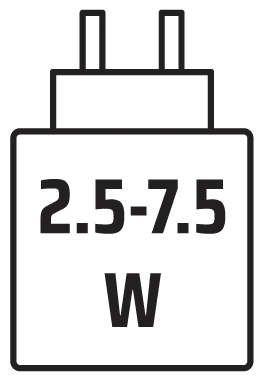
The power delivered by the charger must be between min 2.5 Watts required by the radio equipment, and max 7.5 Watts in order to achieve the maximum charging speed.
COPYRIGHT / LEGAL INFORMATION
©2026 CORSAIR MEMORY, Inc. All rights reserved. CORSAIR and the sails logo are registered trademarks of CORSAIR in the United States and/or other countries. All other trademarks are the property of their respective owners. Product may vary slightly from those pictured.



RELATED CONTENT