Whether you’re cutting about in the fray using the Assault class, or roaming the perimeter of the map ruining people’s day from afar playing Recon, knowing how to see the FPS counter in Battlefield 6 is very handy.
The FPS overlay allows you to see how your PC is handling the game and can be used to home in on the perfect combo of performance and visual fidelity, given that Battlefield 6 is a pretty intensive game, you might need this to modulate your settings to get them just right. So, here’s how to enable the FPS counter in Battlefield 6.
How to Enable FPS Counter in Battlefield 6
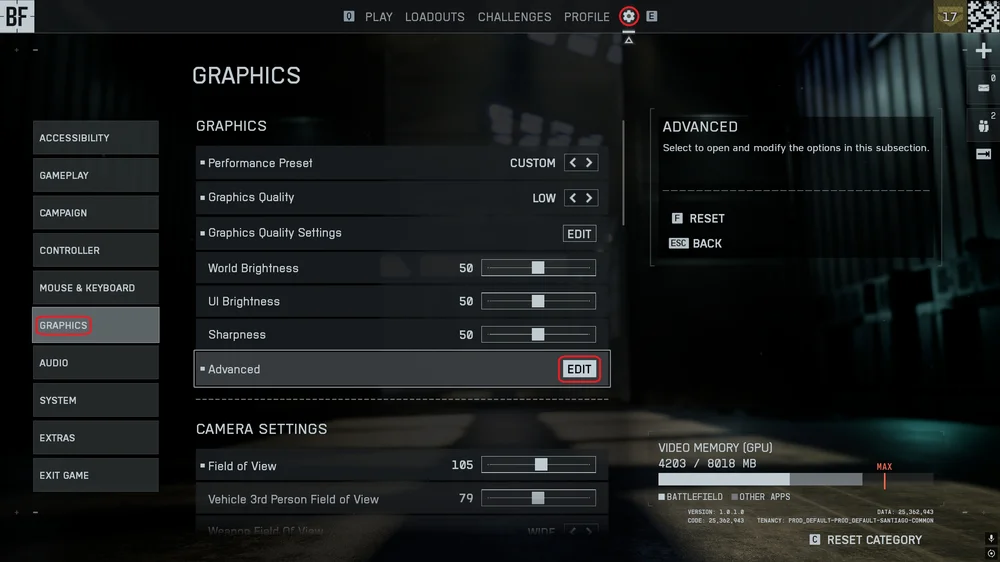
- Click the gear icon up top to open the settings menu.
- Click the graphics tab and find where it says “Advanced” and click “Edit”.
- At the bottom if the Advanced Settings Menu, you’ll see an option called “Performance Overlay”
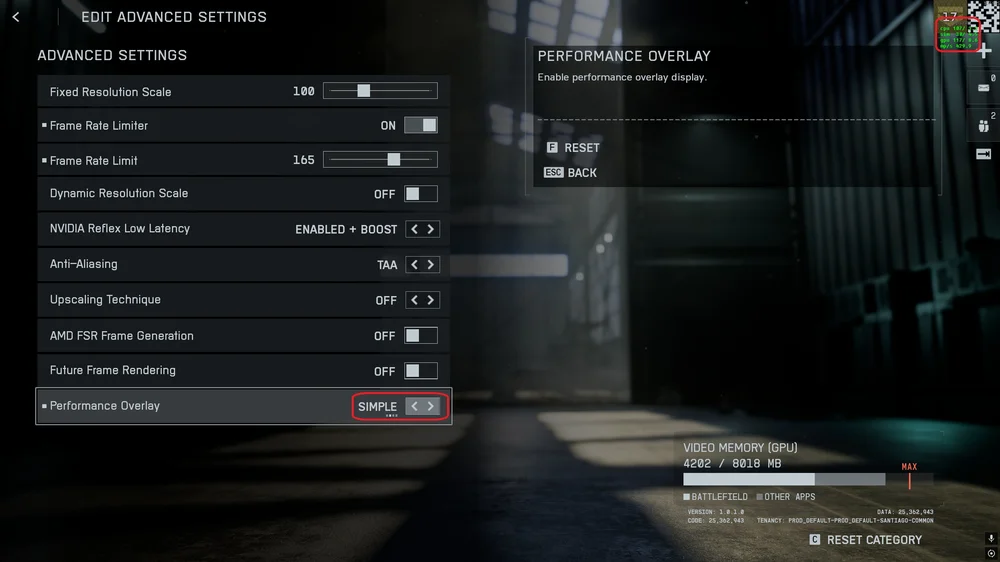
- Click the arrow to the right once to enable the “Simple” performance overlay, which will make a few stats appear in bright green on the upper right corner of your screen. This is the FPS Counter.
How to Read the FPS Counter in Battlefield 6
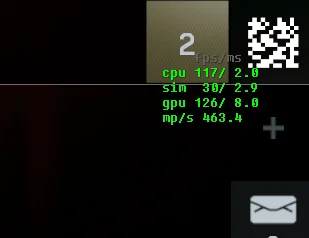
Annoyingly, the FPS counter in this game is not as clear as most people would prefer and obfuscates the data a little. Instead of just a big number that shows the FPS you’re getting, you get more data than you actually need. Here’s what it means.
This overlay basically allows you to see where bottlenecks are appearing in your system. We aren’t fully sure, but between the CPU and GPU rows, whichever number is lowest seems to most accurately correlate with the actual frames per second the game is running at.
- The “sim” line appears to be some kind of measure of latency or tick rate or something like that.
- The “mp/s” line indicates megapixels per second, which can be used in a needless and very roundabout way to calculate the resolution you’re running the game at.
Steam FPS Counter
Of course, you might not want to bother with this, and instead opt to use Steam's built in FPS counter.
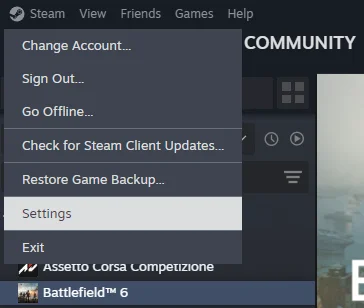
- Open Steam and click the Steam icon in the top right, then click "Settings".
Open the "In Game" tab and click the button next to "Enable the Steam Overlay while in-game".
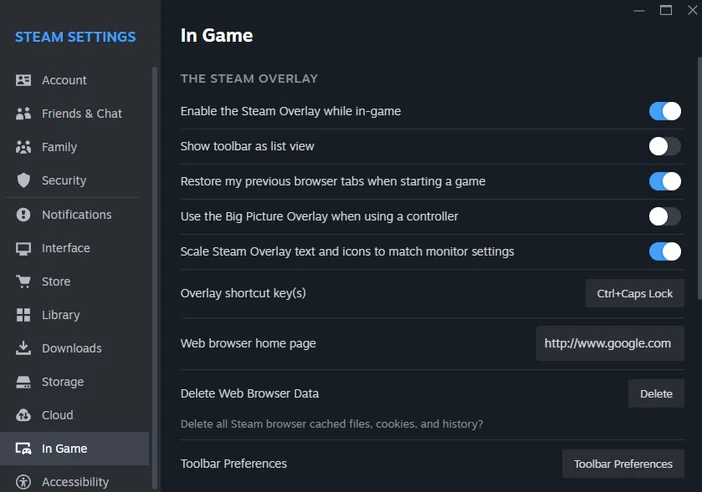
- Scroll down to "Overlay Performance Monitor" and adjust the settings here to your liking. Here you can change the size, location, color, and amount of detail you want.
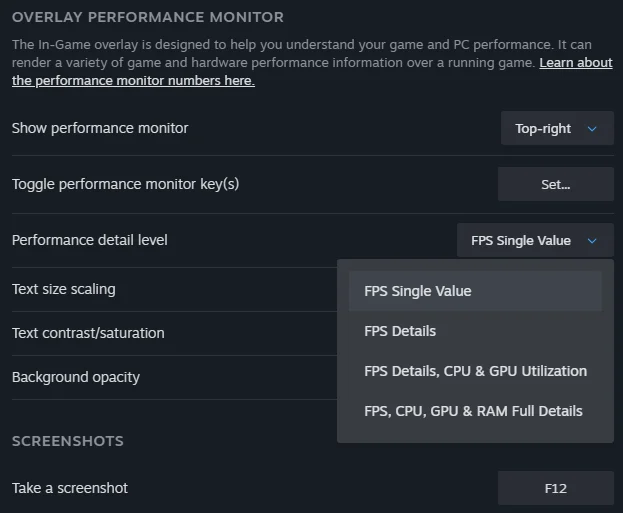
After this, the Steam FPS counter will appear in any game you open via Steam. This is our preferred way of checking FPS because it works across all games and looks identical regardless of which game we're playing. However, what if you don't use Steam? If you bought Battlefield 6 via the EA App, then the Nvidia overlay is a better option.
Nvidia Overlay FPS Counter
You might also prefer to use Nvidia’s FPS overlay, which now works reliably, which wasn't the case during the open beta.
- Hit Alt + Z to open the Nvidia Overlay. Click the tab at the bottom called “Statistics”
- Toggle “Show statistics" in heads up display” to “On”.
- After this, simply hit Alt + R to enable / disable the FPS Counter.
Can't even launch the game? Read our guide on how to enable Secure Boot for Battlefield 6 to make sure your PC is ready to go.
JOIN OUR OFFICIAL CORSAIR COMMUNITIES
Join our official CORSAIR Communities! Whether you're new or old to PC Building, have questions about our products, or want to chat about the latest PC, tech, and gaming trends, our community is the place for you.