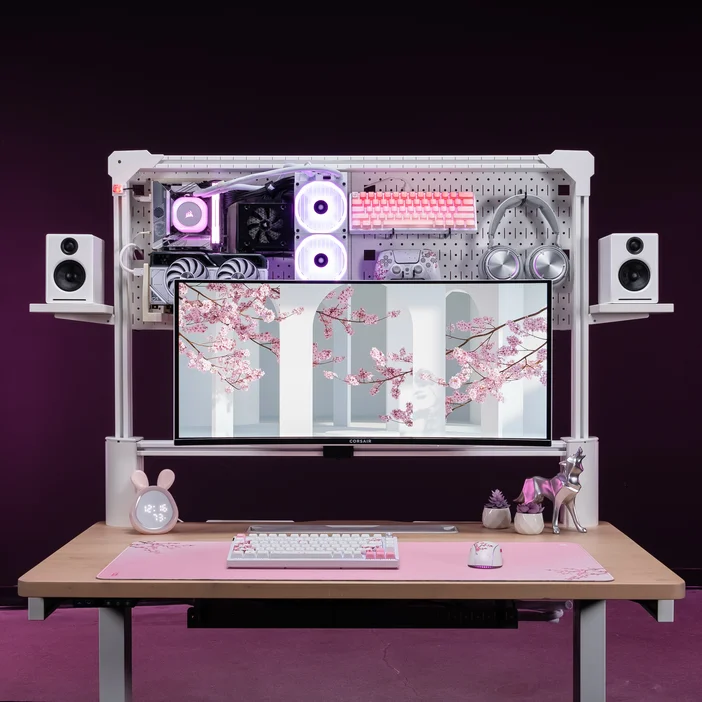
RGB lighting is popular for computer setups - especially those tailored for gamers. However, if you're someone who finds that a constantly pulsating multi-colored beacon on your desk to sometimes be a bit distracting, perhaps setting it all to one static color might be a nice change.
Luckily with iCUE, the process for doing this is quick and easy, requiring just a few steps. Here's a guide on how to set everything in iCUE to a single static color.
Lighting Link
Our traditional method of setting everything in iCUE to a single static color is normally done so via the Lighting Link lighting effect. A quick video guide:
- Select any item in iCUE with lighting customization (ex. VENGEANCE RGB DRAM, K65 PLUS keyboard, NIGHTSABRE mouse, LX fans, etc.)
- Navigate to the "Lighting Effects" tab if it doesn't automatically land you there
- Click the "+" symbol to add a new lighting layer, or select a pre-existing lighting layer
- If necessary, scroll down the "Lighting Type" box and click on the down arrow of the "Lighting Link" to extend the options within
- Select the "Static Color" lighting effect
- The lighting layer is created and shared amongst all iCUE lighting products. Make sure to double-check the "Quick Lighting Zone" for quickly selecting your current item's lighting zones
- Change the color and opacity of the Static Color via the "Static Color" box
Murals
Another method to apply a single static amongst your iCUE products is with our Murals feature. Another video guide on how to do so:
- At iCUE homepage, click the "+" symbol next to the Murals section
- Select the "Static Color" option, then click "Next"
- Click on the white circle and set your desired color
- Exit out of the Color window, then click "Next"
- Name your Murals effect, ex. "Static Blue"
- Click "Create"
- At the iCUE homepage, make sure Murals is enabled for lighting customizable products by clicking on the circle icon located at the bottom left of each iCUE product square
What about non-CORSAIR products?
We have worked with some other brands to allow their products to be controlled in iCUE via plugins. At time of writing we have plugins for Nvidia, Gigabyte, MSI, Asus, and Lenovo.
Note that which specific products that can be controlled via these plugins is decided by the third party brand. This means that some products, especially older ones, may not be supported.
If you do have products supported with these plugins, then you can use Lighting Link with them for a unified, yet brand-agnostic setup.
If you have RGB products that aren't a part of the iCUE ecosystem and cannot be controlled via a plugin, then you'll have to refer to the manufacturer to see what their RGB lighting software is.
If you have ARGB fans for example, then you'll need to use the motherboard manufacturer's RGB software to customize the lighting effect. A workaround to use ARGB fans with iCUE's dynamic lighting effects and cooling customization is possible with our COMMANDER DUO controller.
PRODUCTS IN ARTICLE
JOIN OUR OFFICIAL CORSAIR COMMUNITIES
Join our official CORSAIR Communities! Whether you're new or old to PC Building, have questions about our products, or want to chat about the latest PC, tech, and gaming trends, our community is the place for you.