There are loads of ways to move files from your phone to your PC these days, from remote sharing services to simply plugging in a USB cable. Each method has its perks and levels of convenience, so it’s worth trying a few to see what works best for you. The right choice depends on how easy it is to move the files you need and your own preferences.
Transfer Files from Phone to PC over USB
One of the most reliable methods is to connect your phone to your PC with a USB cable. You can transfer any type of file this way, and it’s fast. The downside is that you need to be physically near your PC. That’s not always ideal. Setting it up the first time can be a bit fiddly depending on your phone too, but once it’s done, it’s smooth sailing.
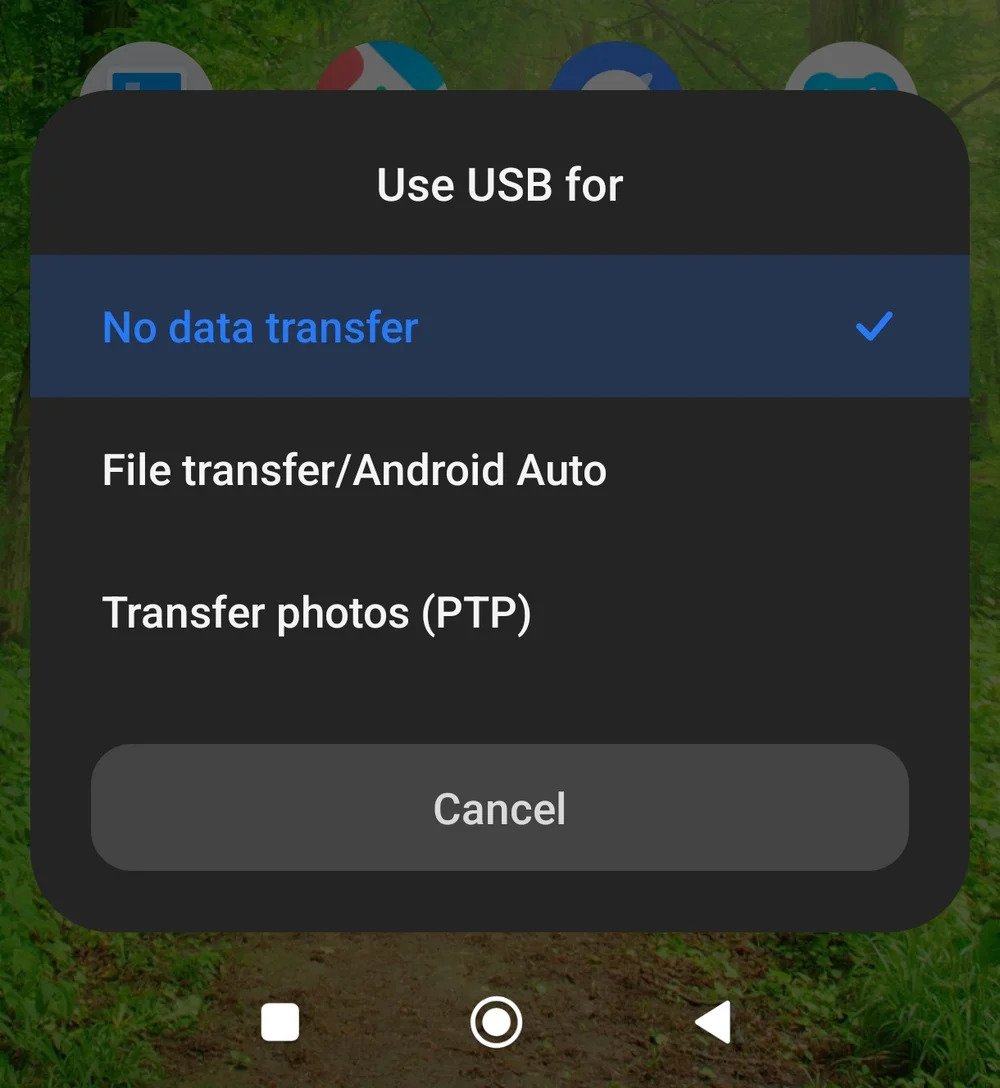
When you plug in the USB cable, your phone will probably default to charging. That’s useful, but not what we’re after here. Tap the “Charging this device via USB” message on your phone to change it.
If you don’t see that message, swipe down from the top of the screen. You should see a menu called “Use USB for” with options like No data transfer, File transfer, and Transfer photos (PTP). If it’s still missing, your phone’s manufacturer might have disabled it. You can turn it back on using Developer Mode.
If this is your first time connecting the phone to your PC, Windows will likely need to install drivers. It shouldn’t take long. Once that’s done, you’ll be able to browse your phone’s files using Windows Explorer.
How to Enable Developer Mode on Android
Here's how to get your phone to transfer files with your Windows PC:
- Open Settings on your phone.
- Tap About Phone.
- Tap OS version seven times quickly. You’ll see a message: “You are now a developer!”
This unlocks the ability to transfer files freely between your phone and PC.
To turn it off later, go to Settings > Additional Settings > Developer Options and toggle it off at the top.
Transfer Files with Phone Link
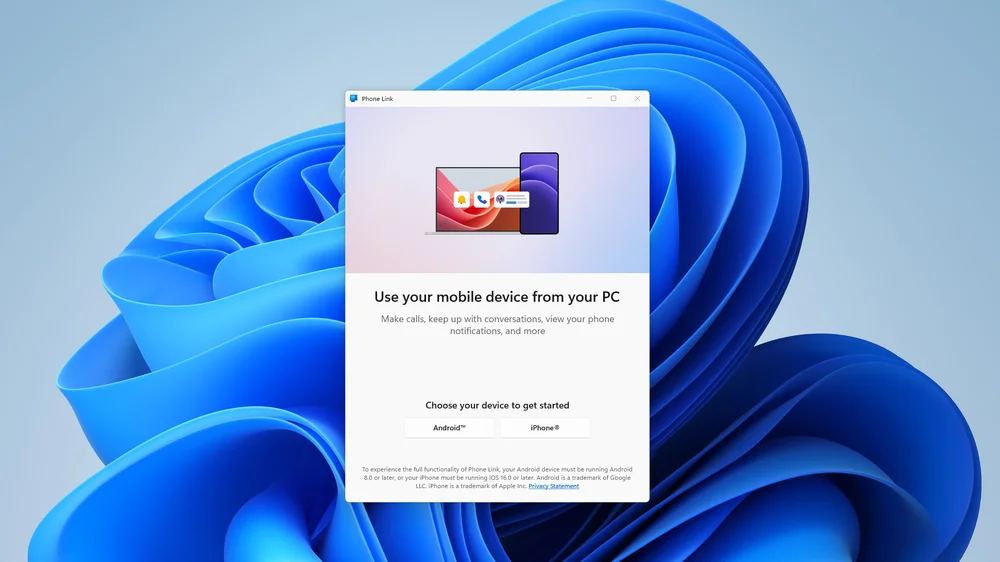
Phone Link comes pre-installed on Windows 10 and 11. It lets you wirelessly connect your phone to your PC and do a bunch of handy things.
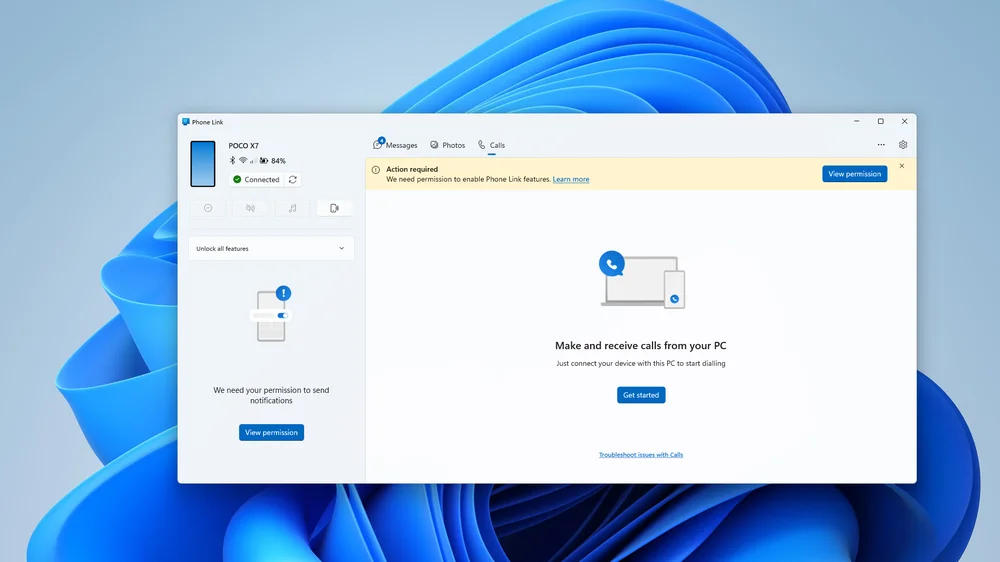
You can read and reply to texts using your keyboard, which is way faster. You can also transfer certain files like photos and videos. It won’t let you move everything, so if you need full access, USB is still the better option. But if your phone and PC are on the same Wi-Fi network, Phone Link is convenient.
To get started:
- Hit the Windows key, type Phone Link, and launch it.
- During setup, you’ll be prompted to install the companion app on your phone.
- Scan the QR code that pops up, or go to https://aka.ms/linkPC to download the Link to Windows app.
Once paired and the various permissions are granted, you can send texts, access your media, and even make calls from your PC.
Transfer Files Using Google Drive
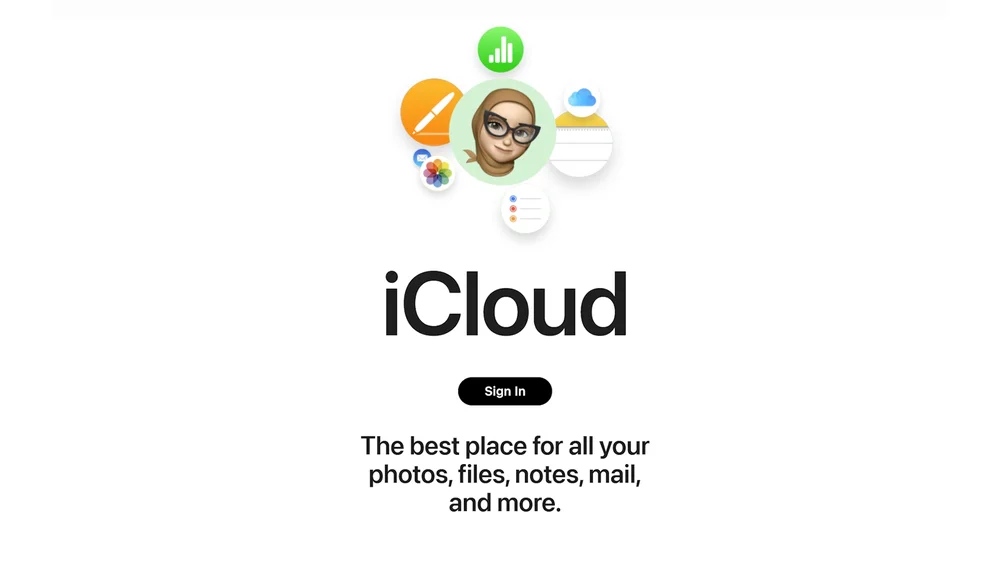
If convenience is your top priority, cloud storage is hard to beat. Services like Google Drive, Microsoft OneDrive, and Apple iCloud make it easy to move files between devices.
They’re especially good for photos and videos. Since everything’s stored online, you don’t even need your phone nearby or turned on to access your stuff.
There are limits, though. You won’t be able to transfer every type of file this way. But for quick access to media and documents, it’s a solid option.
To access your files on a PC, just open your browser and head to Google Drive, OneDrive, or iCloud.
JOIN OUR OFFICIAL CORSAIR COMMUNITIES
Join our official CORSAIR Communities! Whether you're new or old to PC Building, have questions about our products, or want to chat the latest PC, tech, and gaming trends, our community is the place for you.