The Novablade Pro Wireless Hall Effect Leverless Controller includes a set of customizable G-keys (G1–G8) that give players the ability to remap inputs and record macros for faster, more efficient gameplay. Whether you want to assign a single key press, clear an existing remap, or create a sequence of actions, the G-keys allow you to personalize your control setup to match your playstyle.
Below, you’ll find step-by-step instructions on how to remap keys, clear remaps, and record macros.
Remapping G-keys (G6, G7, and G8)

You can reassign specific G-keys to perform other inputs.
- Press and hold the Profile button for 2 seconds.
- The G6-G8 keys will begin blinking, indicating they are ready to be reassigned.
- Press the G-key you wish to remap (G6, G7, or G8).
- Press the new key you want to assign to that G-key.
- The remaining 13 keys, L3, R3, and Touchpad touch function may be mapped.
- This input will replace the default action for that G-key.
- Press and hold the Profile button again for 2 seconds to save your changes.
This feature is especially useful for assigning complex inputs or commonly used functions to a more convenient location.
Clearing a G-key Remap
If you wish to return a G-key to its default state, you can easily clear its remap.
- Press and hold the Profile button for 2 seconds.
- Press the G-key you want to clear.
- Do not press any buttons.
- Press and hold the Profile button again for 2 seconds to confirm.
Once cleared, the G-key will no longer trigger the custom input and will revert to its original function.
Macro Recording (Not Available in PS Mode)
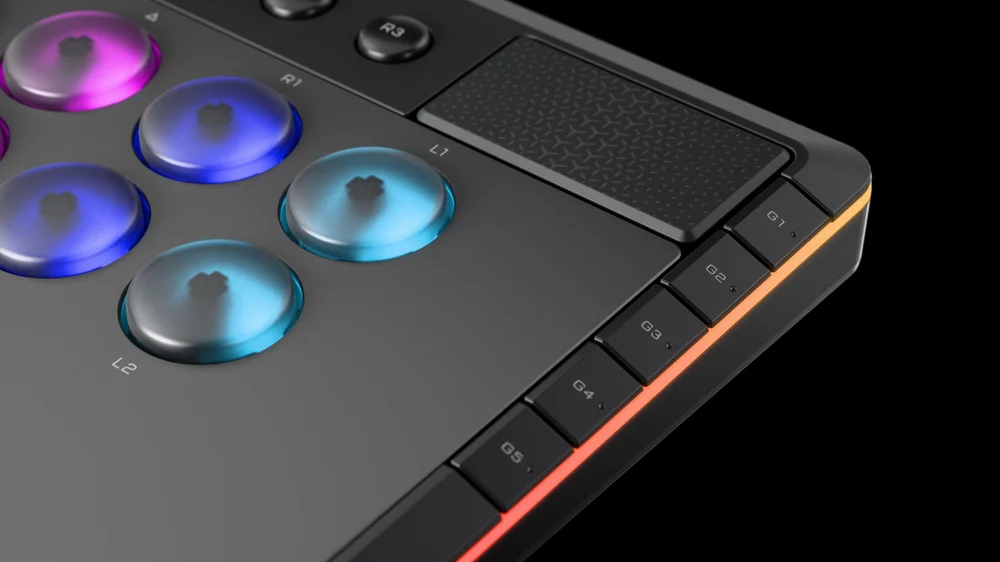
Macros allow you to record a sequence of button presses, including timing and delays, and assign them to a G-key. This can be useful for executing repeated combos or navigation shortcuts.
- Hold FN + R1 to begin macro recording.
- Press the series of buttons you want to record.
- Include any intentional delays, as they will be saved in the macro.
- Press FN + R1 again to stop recording.
- Assign the macro to a G-key (G1–G8) by pressing the desired G-key.
Your macro is now saved and can be triggered by pressing the assigned G-key.
Summary
With remapping and macro recording, the G-keys on your NOVABLADE PRO Wireless Hall Effect Leverless Controller provide powerful customization options. Use remap to quickly reassign inputs, clear remap to reset keys, and macro recording to automate sequences. By tailoring these functions, you can streamline your gameplay experience, giving you both precision and efficiency in every match.
@corsair remapping your NOVABLADE PRO WIRELESS is too easy! #corsair ♬ original sound - corsair
PRODUCTS IN ARTICLE
JOIN OUR OFFICIAL CORSAIR COMMUNITIES
Join our official CORSAIR Communities! Whether you're new or old to PC Building, have questions about our products, or want to chat about the latest PC, tech, and gaming trends, our community is the place for you.