MANUAL | QUICK START GUIDE
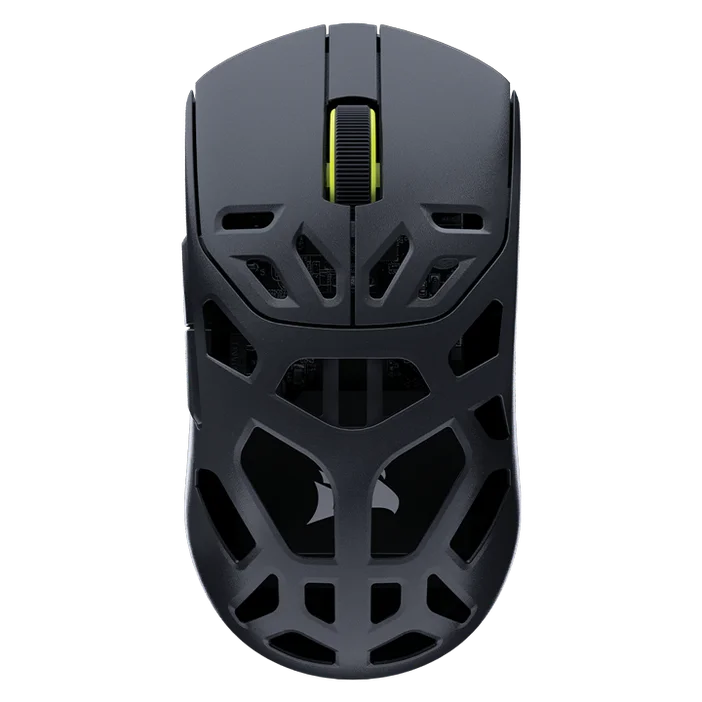
SABRE v2 PRO WIRELESS MG
MAGNESIUM ALLOY GAMING MOUSE
CHARGING THE MOUSE
IMPORTANT: The SABRE v2 PRO WIRELESS MG must be fully charged before its first use. Please update firmware via CORSAIR WEB HUB for the best experience.
Connect the mouse to an available USB 2.0 or 3.X port on your PC with the USB CHARGING / DATA CABLE (L).
The lights under the MIDDLE CLICK / SCROLL WHEEL (C) on the mouse will light up according to the battery status and will turn solid green when charging is complete.
GETTING TO KNOW YOUR MOUSE
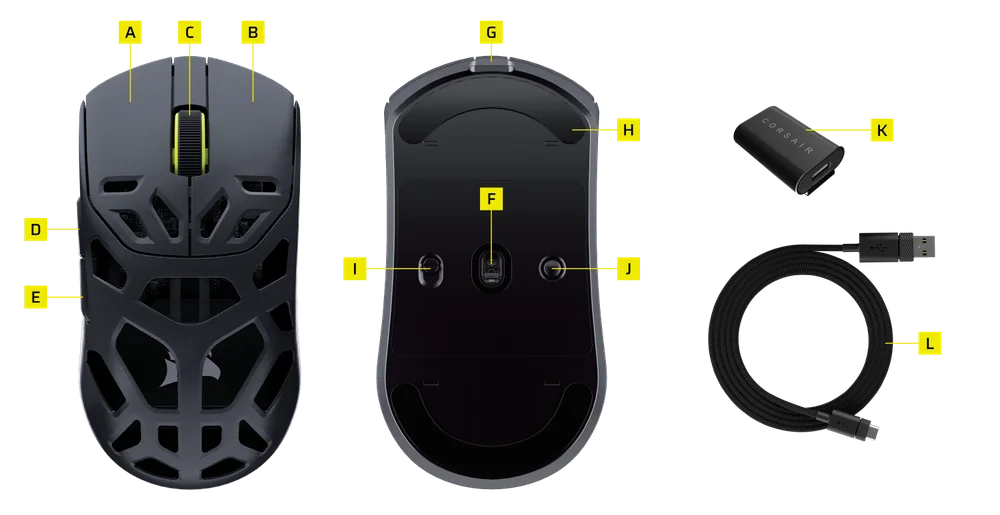
- LEFT MOUSE BUTTON
- RIGHT MOUSE BUTTON
- MIDDLE CLICK / SCROLL WHEEL
- FORWARD BUTTON
- BACK BUTTON
- MARKSMAN S OPTICAL SENSOR
- USB CHARGING / DATA PORT
- 100% VIRGIN-GRADE UPE MOUSE SKATES
- POWER / WIRELESS MODE SWITCH
- DPI BUTTON & BLUETOOTH PAIRING BUTTON (3SEC)
- USB WIRELESS RECEIVER
- USB CHARGING / DATA CABLE
SETTING UP 2.4GHz WIRELESS
- Connect the USB WIRELESS RECEIVER (K) to the USB CHARGING / DATA CABLE (L), plug the other side of the cable to an available USB 2.0 or 3.x port located on the front panel of your PC or nearby USB port.
- Power on your mouse by switching the POWER / WIRELESS MODE SWITCH (I) to 2.4GHz wireless.
- The LED indicator under the MIDDLE CLICK / SCROLL WHEEL (C) will turn solid green when successfully connected to the receiver.
SETTING UP BLUETOOTH
Bluetooth wireless is best for everyday computing tasks, productivity, and office applications.
- Initiate Bluetooth pairing on your Bluetooth 4.0 or higher enabled device.
- Power on your mouse by switching the POWER / WIRELESS MODE SWITCH (I) to Bluetooth.
- The LED indicater under the MIDDLE CLICK / SCROLL WHEEL (C) will blink blue and turn solid blue when connected.
- If the BT pairing device needs to be re-paired or changed, switch the BT mode first. Hold down the DPI BUTTON & BLUETOOTH PAIRING BUTTON (J) for 3 seconds or until the LED indicator starts blinking blue to enter BT pairing mode.
*SABRE v2 PRO WIRELESS MG can only be paired to one device. If you need to pair with another device, please enter re-pairing mode to initialize the pairing process.
CYCLING THROUGH DPI PROFILES
DPI cycling is available for fast configuration.
- Press the DPI BUTTON (J) once to switch to next DPI stage.
- When switching to the corresponding DPI level, the indicator light on the mouse wheel will flash 3 times for the corresponding DPI color and then turn off.
- Repeat the above steps to switch to the next DPI stage. It will cycle through 5 DPI stages and return to Stage 1.
Advanced configurations are available via CORSAIR WEB HUB.

MOUSE STATUS AND INDICATIONS
Wireless connection and battery status are communicated through the lights under the MIDDLE CLICK / SCROLL WHEEL (C).
| DPI STATUS - PREDEFINED | LED INDICATOR |
| STAGE 1 - 400 | RED |
| STAGE 2 - 800 | BLUE |
| STAGE 3 - 1200 | GREEN |
| STAGE 4 - 1600 | YELLOW |
| STAGE 5 - 2000 | PURPLE |
| BATTERY STATUS | LED INDICATOR |
| Battery charging when low | Breathing Red |
| Battery charging when medium | Breathing Green |
| Battery full | Solid Green |
| Battery critical, recharge required | Breathing Red |
STEP-BY-STEP MOUSE SETUP GUIDE
Step 1 – Connect Your SABRE v2
A. Plug in the SABRE v2 PRO WIRELESS MG’s receiver via Type-C.
B. Make sure the power switch on the mouse is set to "2.4 GHz".
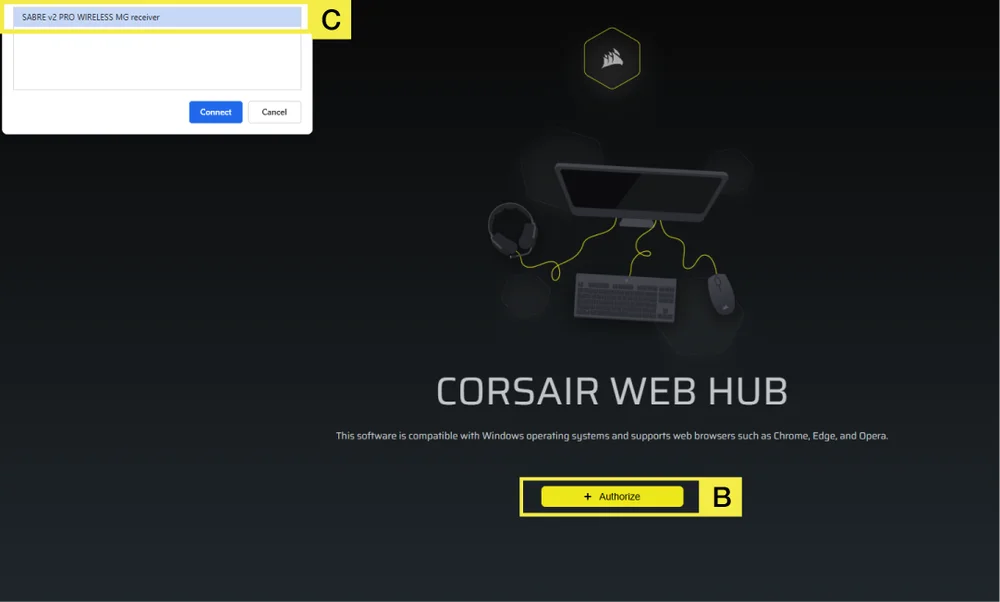
Step 2 – Open CORSAIR WEB HUB and Select the Mouse
A. Go to https://www.corsair.com/web-hub/index.html.
B. Click [Authorize].
C. Choose SABRE v2 PRO WIRELESS MG receiver.
Step 3 – Create or Select a Profile
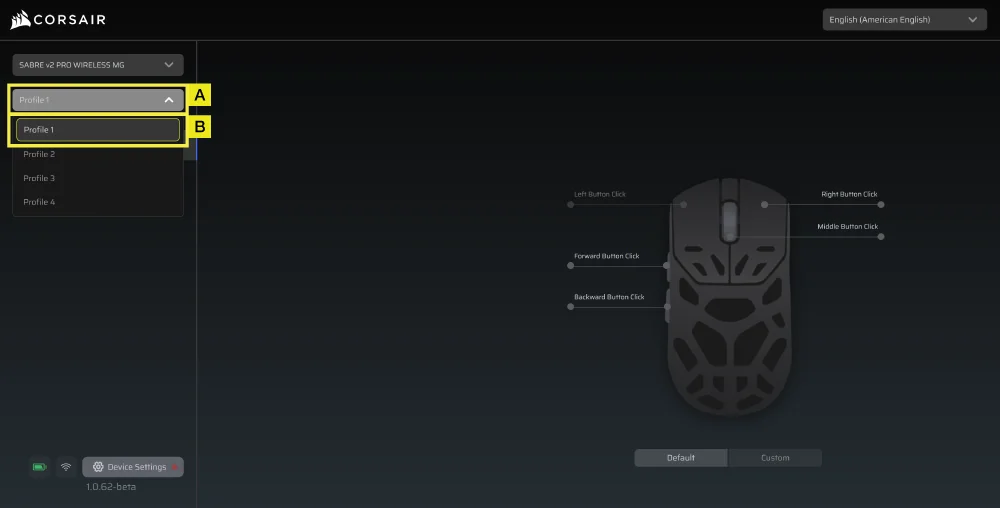
A. At the top-left, open the profile dropdown Menu.
B. Click the profile you want to edit (for example: “Profile 1”).
C. This profile will store your DPI, and button assignments.
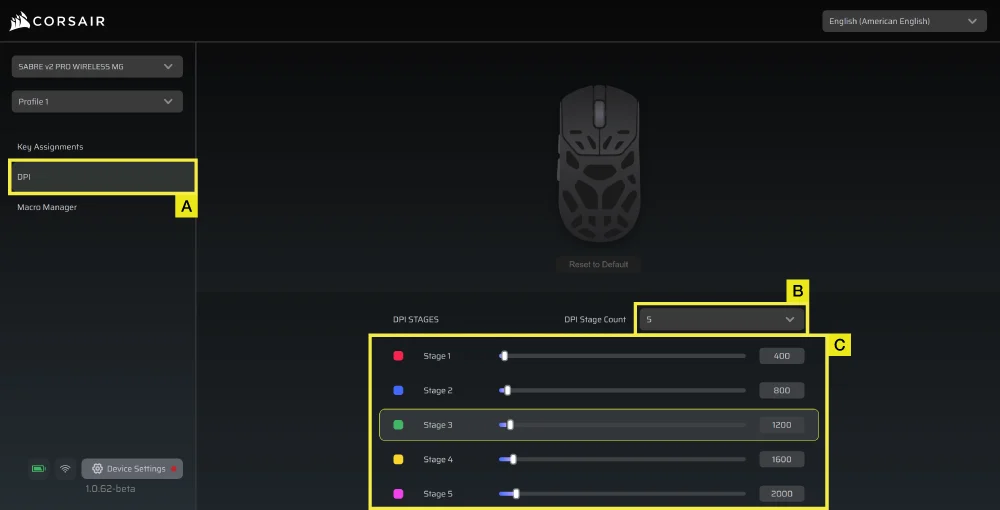
Step 4 – Set DPI Levels
A. Click [DPI] in the left sidebar.
B. Choose how many DPI stages you want (1~5).
C. Enable the DPI stages you want to use (for example, 800/1200/1600).
Recommended starting DPI:
- Desktop/general: 1200–1600 DPI
- FPS games: 800–1200 DPI
- MOBA/MMO: 1600–2400 DPI.
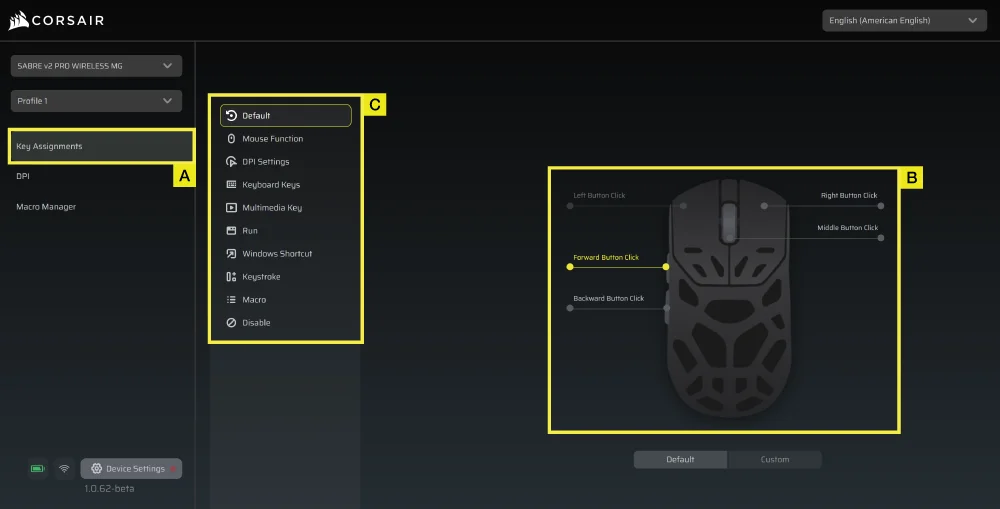
Step 5 – Remap Buttons (Actions / Key Assignments)
A. Click [Key Assignments] in the left sidebar.
B. Click the button on the mouse diagram you want to change.
C. Choose the Assignment Type:
- Keyboard (remap to a key like R, E, or P)
- Macro (record multiple keystrokes)
- etc.
D. Confirm the assignment and test it.
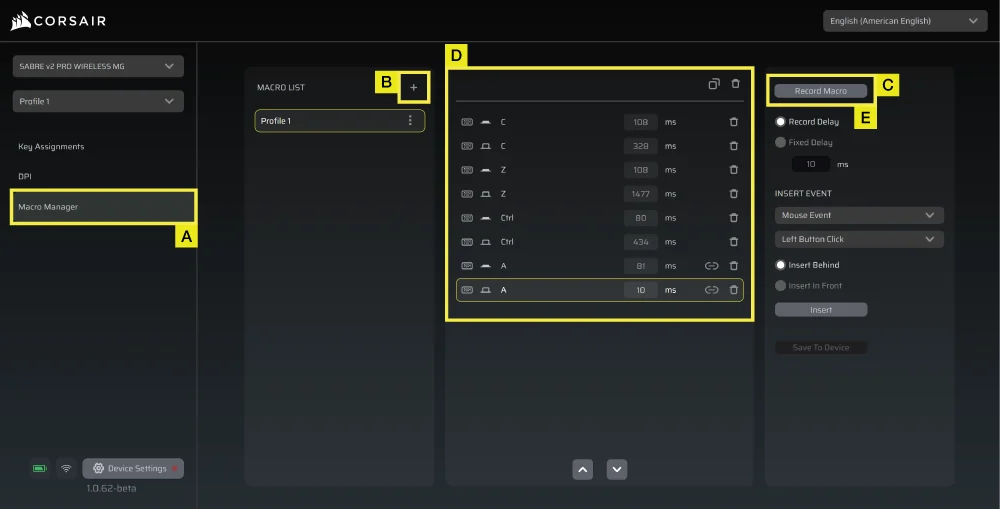
Step 6 – Set Macro Manager
A. Click [Macro Manager] in the left sidebar.
B. Click [ + ] to add a new Macro (For example: “Profile 1”).
C. Click [Record Macro] on the right.
D. Press the keyboard keys or mouse events you want to record.
E. Click [Record Macro] again to stop recording.
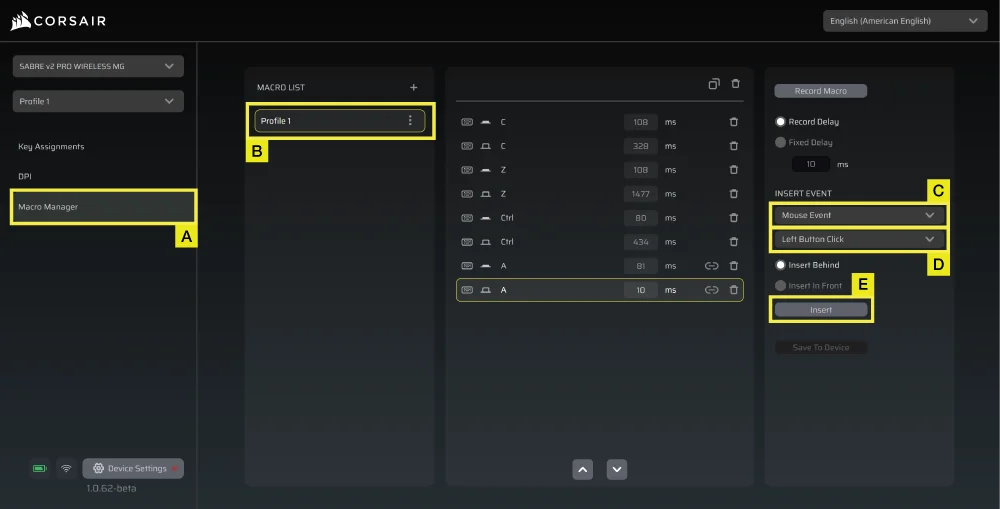
Step 7 – Insert Macro Events Manually
A. Click [Macro manager] in the left sidebar.
B. Choose the Macro you want to edit.
C. At the insert event bar, choose whether you want to insert keyboard or mouse events with the first dropdown menu.
D. Choose the event you want to insert with the second dropdown menu.
E. Click [Insert].
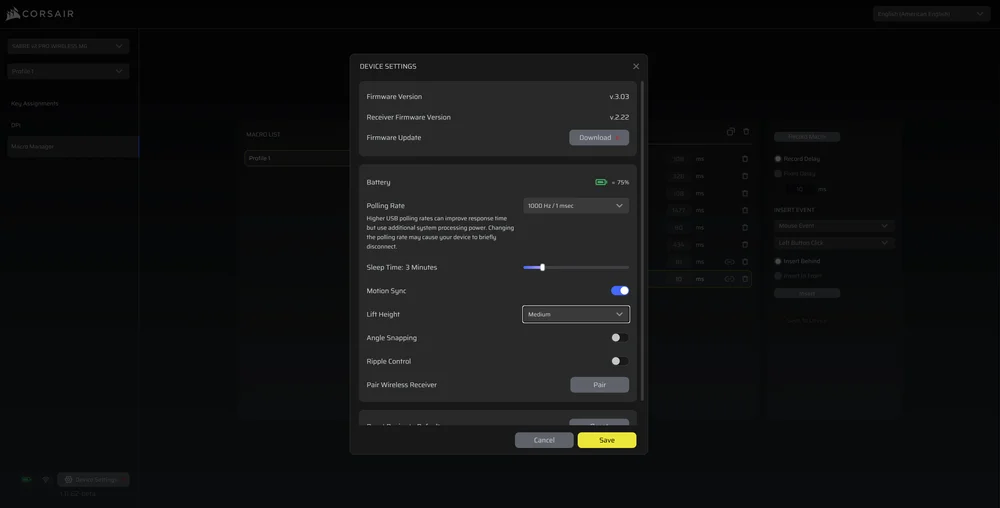
Step 8 – Device Setting
- Click Device Setting at bottom left.
- Device Settings.
- Battery – Wireless connectivity or battery status.

-
Polling Rate – Select [ 1000 Hz / 1 msec ] polling for 1000Hz polling.

- Sleep Time – Adjust time after mouse transitions to Sleep Mode.

-
Motion Sync – Aligns mouse movement data with USB polling intervals to deliver more consistent and stable cursor tracking.
- Lift Height – Sensor cut off height.

-
Angle Snapping – Smooths out mouse movement via sensor prediction when ON.
-
Ripple Control – Smooths mouse movement by filtering out small, unintended jitter at the cost of slightly reduced raw input precision.
-
Pair Wireless Receiver – Pair or reset the wireless receiver.
-
Reset Device Default – Reset your SABRE v2 PRO WIRELESS MG to default setting.
Step 9 – Update Firmware
A. Click [Device Setting] at bottom left.
B. Click [Check for Updates] to ensure you are running the latest device firmware.
C. Follow the steps to update the firmware if needed.
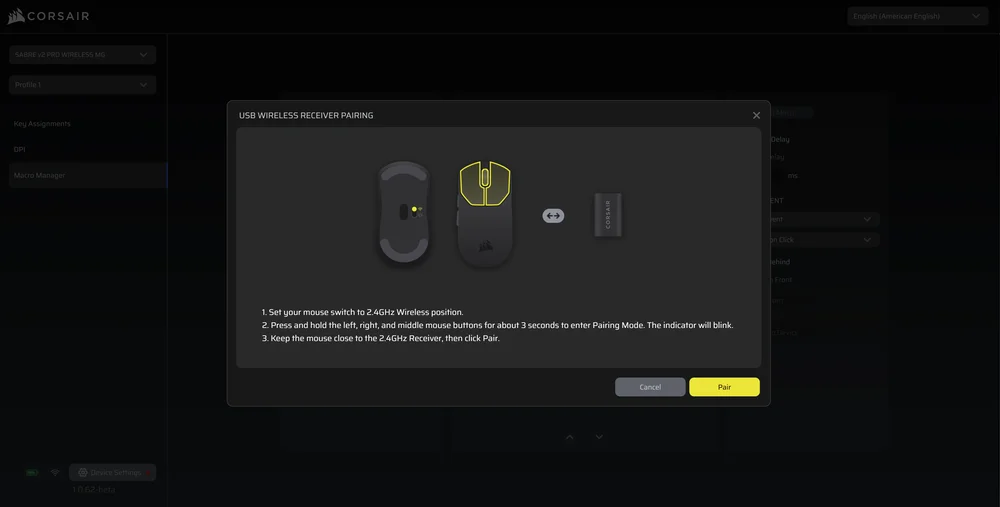
Step 10 – Pair Wireless Receiver
A. Click [Device Setting] at bottom left.
B. Click [Pair].
C. Follow the steps to pair the USB receiver.
BATTERY REMOVAL INFORMATION
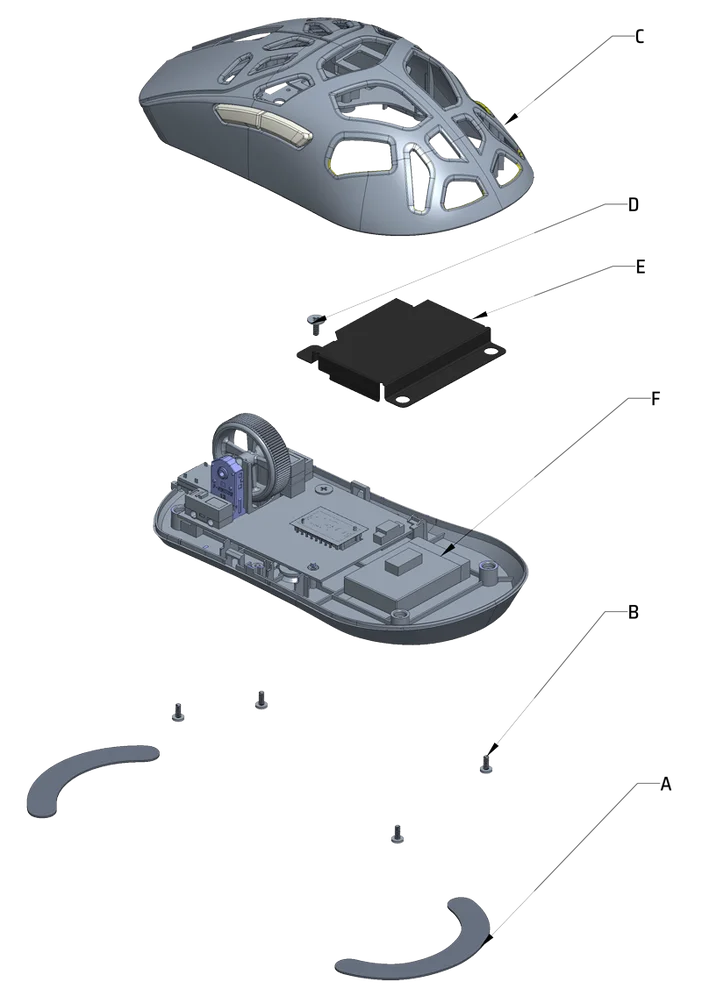
A: Remove feet x2
B: Remove screws x4
C: Disassemble top case sub assy
D: Remove screw x1
E: Remove battery cover
F: Remove battery
This product uses a rechargeable battery and safety guidelines must be followed in the event that the product is disabled for disposal and recycling. To safely remove the battery for disposal and recycling, follow the numbered steps with the below diagrams.
CORSAIR MEMORY, Inc. encourages customers to recycle used electronic hardware and rechargeable batteries in accordance with local laws and regulations.
BATTERY INFORMATION
- M/N(型號): TW 602030
- Capacity(電池容量): 3.7V, 300mAh, 1.11Wh
- Scan the QR code for battery details

M/N(型號): RGP0184
Rating(電壓電流): 5V
 400mA
400mADongle
M/N(型號): RGP0185
Rating(電壓電流): 5V
50mA FCC ID: 2AAFM-RGP0184 (Mouse)
FCC ID: 2AAFM-RGP0185 (Dongle)
IC: 10954A-RGP0184 (Mouse)
IC: 10954A-RGP0185 (Dongle)

The power delivered by the charger must be between min 2.5 Watts required by the radio equipment, and max 10 Watts in order to achieve the maximum charging speed.
Recommend charging within temperatures 5°C-40°C (41°F-104°F) for best performance.

COPYRIGHT / LEGAL INFORMATION
© 2026 CORSAIR MEMORY, Inc. All rights reserved. CORSAIR and the sails logo are registered trademarks of CORSAIR in the United States and/or other countries. All other trademarks are the property of their respective owners. Product may vary slightly from those pictured.
