FAQ
CORSAIR XENEON 32UHD144-A FAQ
Power LED not on
- Press the power button on the back of your monitor to check if it is set to ON.
- Check to see if the power cable is fully plugged into the monitor as well as the power adapter.
- Check Power LED toggle in OSD System Setting Menu is toggled on.
No image on screen
- Check to see if your monitor is on.
- Check to see if the video cable is properly connected to the monitor as well as the source device.
- Check the quality of the video cable and ensure that it isn't damaged. Avoid low quality video cables and extensions.
- Check which video source input your monitor is set to (if the Auto Source feature is disabled in OSD).
- Connect another source device to test monitor video input.
- Connect the source device to another available monitor to test video output.
- Avoid hot-plugging the monitor. Have the monitor connected to the source prior to powering up the source device.
Image too light/dark
- Adjust the brightness/gamma/contrast settings via the OSD.
- Reset the monitor to factory settings.
Video signal not supported
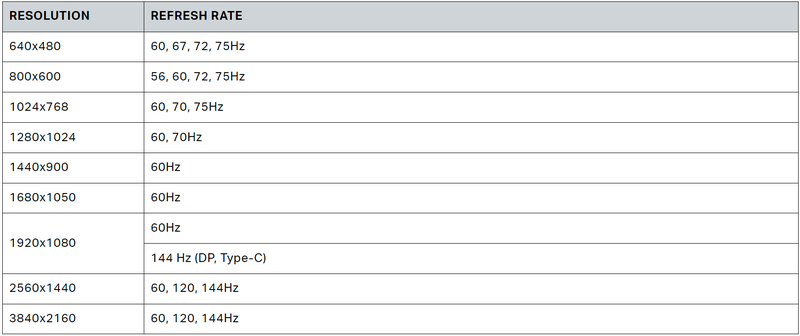
Check the video output settings of the source device. Supported input resolutions for the CORSAIR XENEON 32UHD144-A Gaming Monitor are:
Does the CORSAIR XENEON 32UHD144-A support video over USB-C?
Yes, the CORSAIR XENEON 32UHD144-A supports DisplayPort over USB-C through the dedicated TYPE-C DP ALT input. Use the included 1.5m Type-C cable or a quality USB Type-C cable that supports USB 3.2 Gen 2 for best results.
I’m unable to use devices connected to the USB-A ports on my monitor when connected to my device that supports USB-C Alt Mode using a single USB-C cable.
USB-C Alt Mode, by default will operate in "4 lane" mode which allows for full DisplayPort resolution over USB-C, however this limits the use of the USB Type-A ports at USB 2.0. To re-enable the USB Type-A ports when connected solely via the TYPE-C DP ALT input, switch to "2 lane" mode which will limit the supported video output resolution in order to re-enable the USB Type-A ports for peripherals connected to the monitor's USB Type-A ports. Alternatively, you may connect the source device to the USB downstream port as well as the TYPE-C DP ALT port for full video resolution and USB port functionality. Ensure that you're using a quality USB Type-C cable that supports USB 3.2 Gen 2 for best results.
Image is stretched/squished
Check the "Aspect Ratio" setting under "System Setting". By default this is set to "Auto", however in certain instances, you may need to manually set an aspect ratio (ex: certain combinations of adapters and retro game consoles).
Image has color issues
- Check the quality of the video cable and ensure that it isn't damaged. Avoid low quality video cables and extensions.
- Reset the monitor to factory settings.
- Adjust the picture settings via OSD.
Artifacts in onscreen image
- Check the quality of the video cable and ensure that it isn't damaged.
- Check your source device, a faulty graphics card or game console may require contacting the manufacturer for assistance.
Monitor has a dead pixel
CORSAIR provides a "Zero Dead Pixel" policy for monitor products, if 1 or more bright pixels or 6 or more dark subpixels are found, the monitor will be exchanged during the 3-year warranty period.
What kind of VESA mount is compatible?
CORSAIR XENEON 32UHD144-A supports a standard 100mm x 100mm mount, the monitor head must be removed from the stand. Use the mounting screws supplied with your VESA mount.
My CORSAIR XENEON monitor isn’t detected by CORSAIR iCUE
- Check to ensure that your PC has the latest version of CORSAIR iCUE installed. The CORSAIR XENEON 32UHD144-A is supported in iCUE version 4.24 or newer.
- Check to ensure that the cable connected to the USB-C upstream on the monitor and your PC's USB 3.0 port is properly connected. Avoid connecting the monitor through a USB hub or extension if possible. We strongly recommend using the USB-C cable provided with the CORSAIR XENEON monitor for best results.
What adaptive refresh rate options are available to CORSAIR XENEON?
The CORSAIR XENEON 32UHD144-A is certified for AMD FreeSync Premium and is also NVIDIA G-SYNC compatible.
AMD FreeSync / G-SYNC aren’t enabled.
- Check that AMD FreeSync is enabled via OSD.
- Check your graphics card settings and ensure that AMD FreeSync / NVIDIA G-SYNC are enabled. AMD FreeSync functions over any of the video ports. NVIDIA G-Sync compatibility only works over DP or USB Type-C Alt-Mode DP.
I’m not getting the monitor’s rated 144Hz refresh rate.
- Check your graphics card/system display settings and ensure that the 144Hz refresh rate has been enabled. See Supported Display Mode Table in Appendix for available options.
- Check the quality of the video cable and ensure that it isn't damaged. Avoid low quality video cables and extensions.
PRODUCTS IN ARTICLE
JOIN OUR OFFICIAL CORSAIR COMMUNITIES
Join our official CORSAIR Communities! Whether you're new or old to PC Building, have questions about our products, or want to chat about the latest PC, tech, and gaming trends, our community is the place for you.