GLOSSARY
What is Resizable BAR?
This technology is Resizable Base Address Register (BAR), and it’s a feature on modern motherboards, CPUs, and graphics cards that can increase performance in supported games by allowing for more efficient memory management. It’s a PCI Express technology, and was rolled out with PCIe 3.0 in 2010, but not widely adopted until 2020 when AMD began offering it as a feature of its Radeon 6000-series GPUs. Nvidia then added it as a feature to its RTX 30-series GPUs in 2021. Intel supports it on its Arc GPUs as well, and on its CPUs going back to Skylake.
AMD calls this technology SAM, which stands for Smart Access Memory, but Nvidia uses Resizable BAR, shortened to ReBAR. In order for it to work, it has to be supported by the CPU, motherboard, and graphics card. Though this technology made a big splash in 2021, it’s not talked about much these days, likely due to its unpredictable and/or negligible performance gains for gaming.
How does Resizable BAR work?
When a game is running, the CPU needs access to a graphic card’s memory, and by default it can only access 256MB at a time. However, resizable BAR removes the size limitation so the CPU has access to all of a GPU’s memory, theoretically allowing for improved performance. This adjustment lets the CPU request much larger chunks of data from the GPU, which can improve performance in games that can benefit from this change.
Resizable BAR lowers the overhead involved in the transfer of game assets between the CPU and GPU, sending fewer, larger transfers instead of numerous smaller transfers, and it can also allow multiple requests to happen at the same time instead of entering a queue. As an example, if your CPU needs 1GB of data it would have to make four requests using a 256MB limitation, or just one using ReBAR/SAM.
How much of an improvement can I expect?
It will depend on your hardware, the game you’re playing, what settings you’re using, and so forth, so it’s not a blanket improvement in all games, as it really depends on the scenario. It should be noted Intel Arc GPUs require Resizable BAR, unlike AMD and Nvidia GPUs. Techpowerup reviewed the Intel Arc A770 with and without ReBAR enabled and found performance dropped 77% with it disabled, so Intel is unique in this regard.
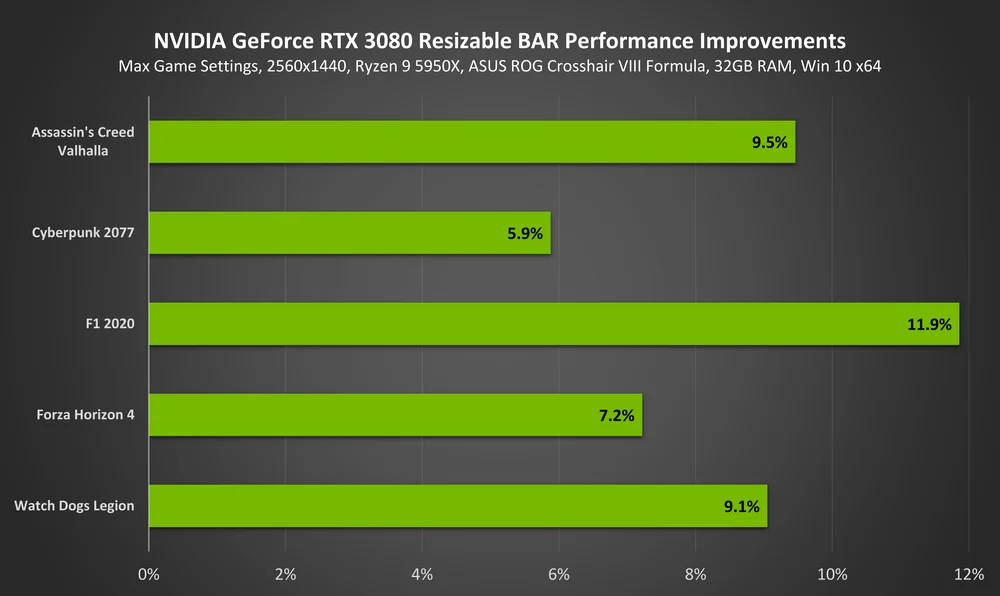
Nvidia's numbers for Resizable BAR's performance improvements, which are a best case scenario.
Depending on which site you think is trustworthy, online reviewers have found that enabling ReBAR/SAM can offer a wide range of performance benefits, from almost nothing at all to around 5% to 20% performance improvement, but it depends on the hardware, game, and what resolution is being used. TechSpot has comprehensive benchmarks and found the technology benefited Radeon users more than Nvidia owners. However, it’s free performance, and you don’t get that very often these days, so it’s worth it to make sure it’s enabled on your system.
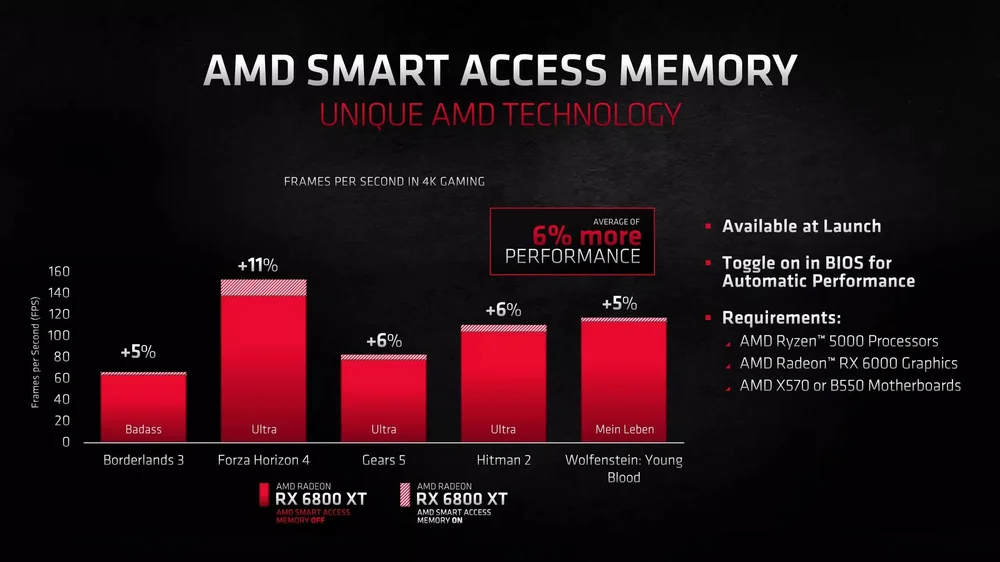
AMD's numbers show most gains are pretty small.
How do I see if Resizable BAR is enabled on my system?
You can determine if it’s enabled by looking in your computer’s BIOS, which is where it’s enabled in the first place, or by using desktop utilities.
Nvidia Users:
Right-click the desktop and select Nvidia Control Panel. When that window opens, click the icon in the lower left-hand corner called System Information, and a window will appear showing features for your GPU, with Resizable BAR clearly outlined. Note free utilities such as GPU-Z will also display this information.
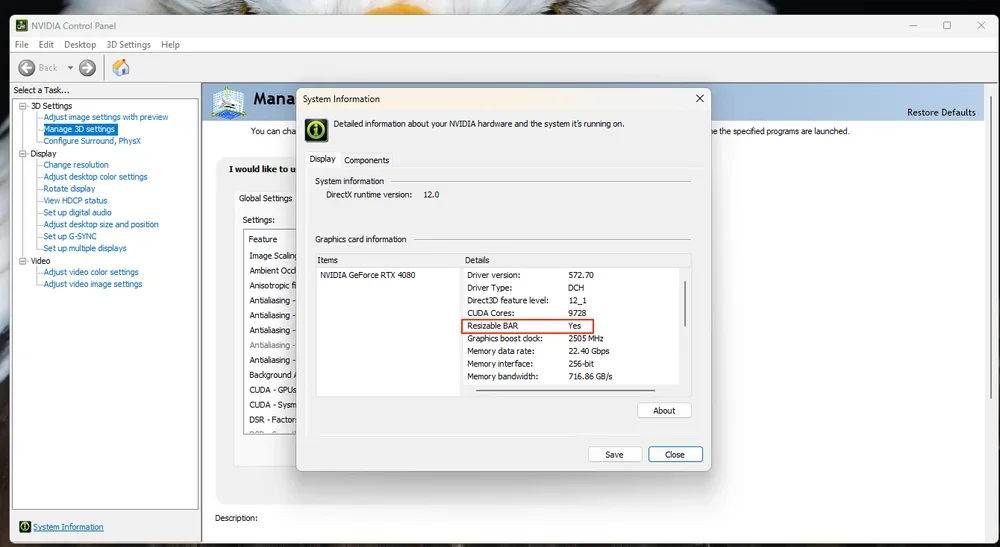
The Nvidia Control Panel can tell if you ReBAR is enabled or not.
AMD Users:
You will need to open up the Radeon software to see the main control panel, which has a box on the bottom-left that shows the status of Smart Access Memory with a “tiny brain” icon next to it. We don’t have access to an AMD system to post a screenshot, but PCWorld has a good walkthrough with screenshots here.
Intel Users:
You can easily see if it's enabled in the Arc Control software, or you can use a free utility such as GPU-Z.
Enabling Resizable BAR via BIOS
Regardless of your CPU or GPU, you will need to enable this feature in your BIOS. Given the level of variety found in modern BIOSes, its location and name could vary depending on myriad factors, so Google is your friend. Generally speaking, it’s typically found in the “Advanced” section of a BIOS under PCIe Settings or something similar. Note that there is no way to customize the amount of memory that is allotted to the CPU, as this is a binary feature that is either on or off.
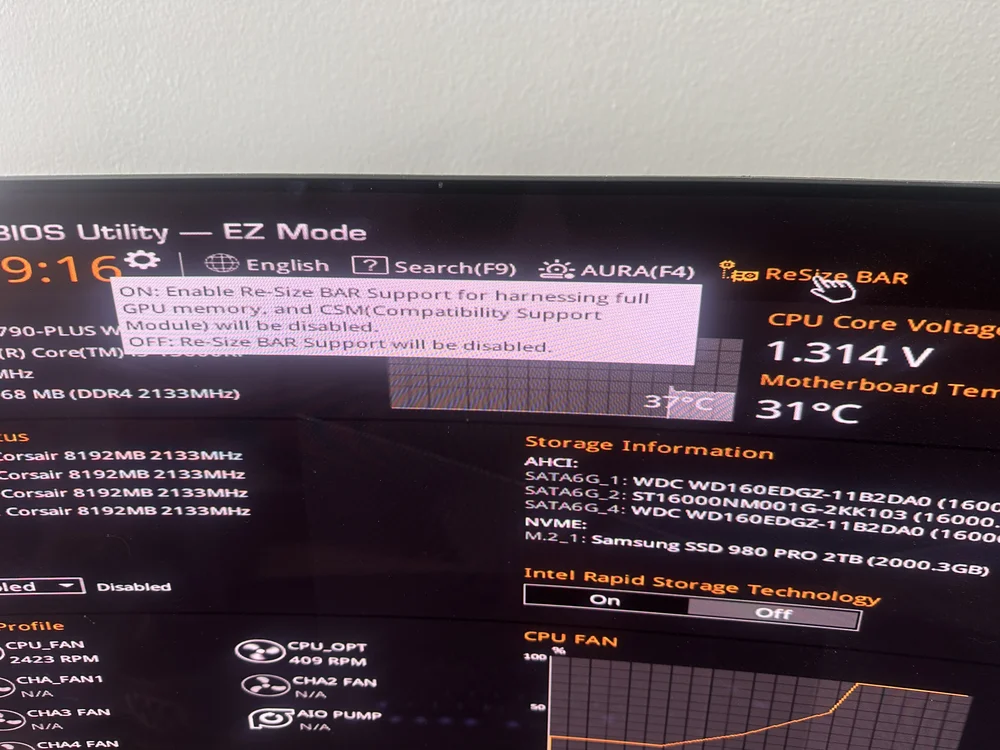
This Asus Z790 board has a handy icon on the BIOS home page letting users toggle it on or off without digging into the menus.