The XENEON EDGE is a game changer in the PC gaming, streaming, and content creation world. In case you want the freedom to use the EDGE as a secondary monitor for videos, web browsing, or anything else, then you've come to the right place to help configure it.
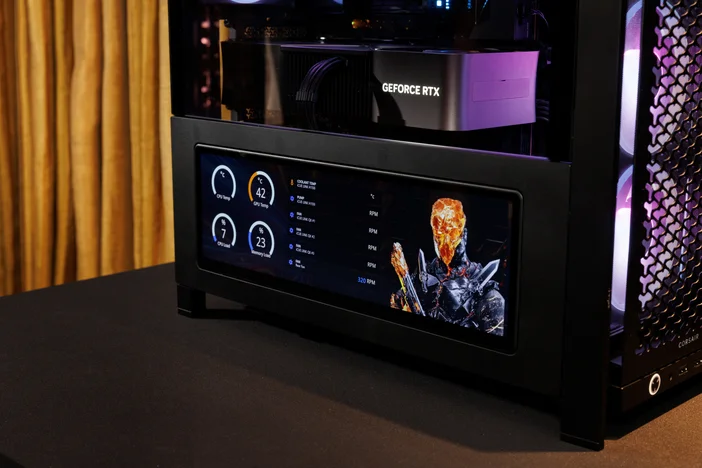
Once you open your XENEON EDGE, you will be greeted with the following:
- Desktop stand (magnetically attaches)
- HDMI cable
- USB-C (Thunderbolt capable) cable
- Microfiber cloth
After you've chosen where you want your EDGE to be situated - on your desk, on or even in your PC, plug it in! You can connect via two methods:
- Both HDMI (either to GPU or motherboard) & USB-C (to motherboard) - will enable a higher nit for brighter display compared to method #2
- Thunderbolt/USB 4 via USB-C (to motherboard with an integrated graphics CPU)
It is worth noting that not all motherboards have an HDMI port, and that using an HDMI port on the motherboard requires the CPU to have integrated graphics. If using the EDGE with a Thunderbolt or USB 4 port, the HDMI is optional. When using a desktop CPU with integrated graphics, it is worth noting that it may be automatically disabled when there is a dedicated graphics card installed. To re-enable integrated graphics, you'll need to do so in your motherboard's BIOS settings.
The XENEON EDGE may also be used with a laptop - just make sure you have a spare Thunderbolt/USB 4 port, or USB-A/USB-C + HDMI ports.
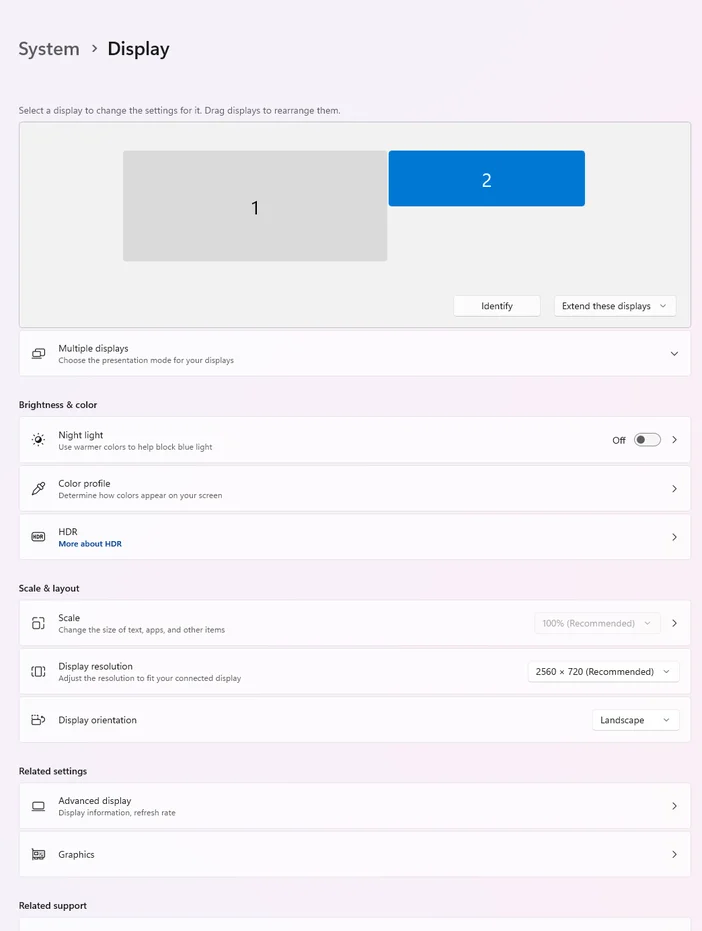
Once you have your XENEON EDGE all plugged in, open up Display Settings in Windows. Your XENEON EDGE should already be identified as an alternate display. This is where you can adjust settings regarding your XENEON EDGE's display. If the XENEON EDGE is not displaying anything, double-check your cables are fully inserted on both your PC and EDGE.
Assuming you have another monitor connected, you can click and drag the EDGE in Windows' Display Settings to be its proper position for seamless transition.
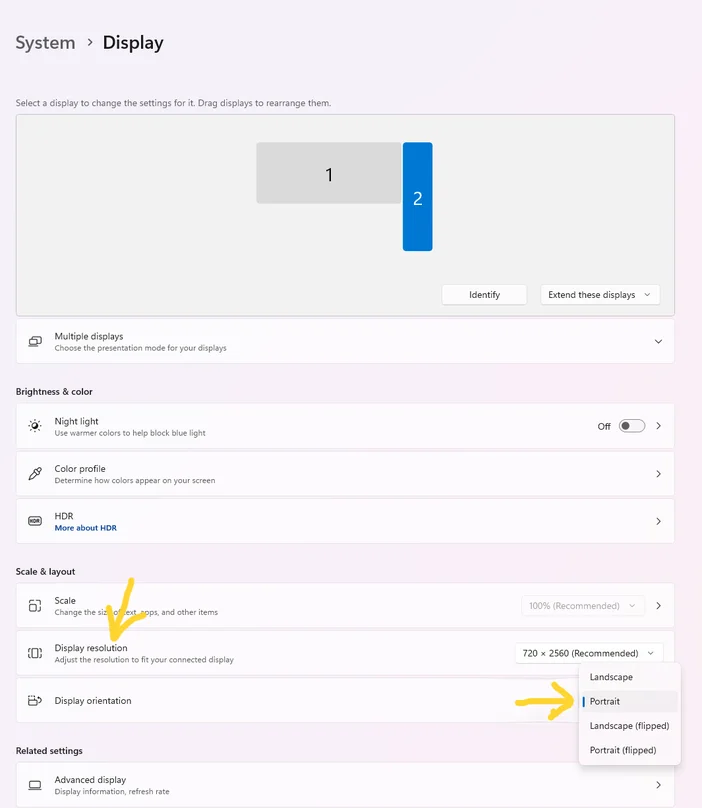
If you have your EDGE oriented vertically, you can switch the display's landscape orientation (default) to portrait. You can also flip your EDGE if it is orientated upside-down for any reason, such as being installed in your case upside-down for better cable management.
PRODUCTS IN ARTICLE
JOIN OUR OFFICIAL CORSAIR COMMUNITIES
Join our official CORSAIR Communities! Whether you're new or old to PC Building, have questions about our products, or want to chat about the latest PC, tech, and gaming trends, our community is the place for you.