Have you ever been gaming on a PC for hours, then suddenly hear your fans ramping up to maximum RPM? You might also notice your game dropping frames or feeling laggy. This happens because your CPU or GPU is reaching critical temperature thresholds, signalling it to slow down to avoid overheating and potential damage. This slowdown in performance due to high temperatures is known as Thermal Throttling.
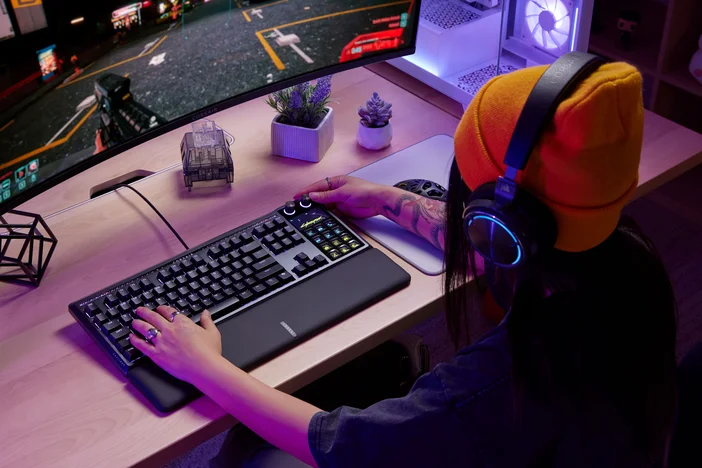
Thermal throttling is a crucial safety feature built into modern computing devices, including CPUs and GPUs in PCs and laptops, as well as tablets and mobile phones. It helps protect components from overheating, which could otherwise cause system crashes or hardware failure. This balance between performance and safety is important in designing and operating electronic devices.
How Does it Work?
When you're playing a game or running an app on a PC, laptop, tablet, or even mobile phone, in some cases, they are pushed to their limits, especially in games or applications that heavily utilizes CPUs and GPUs. These parts generate heat, and if they're working too hard and the cooling is not up to snuff, it can lead to overheating.
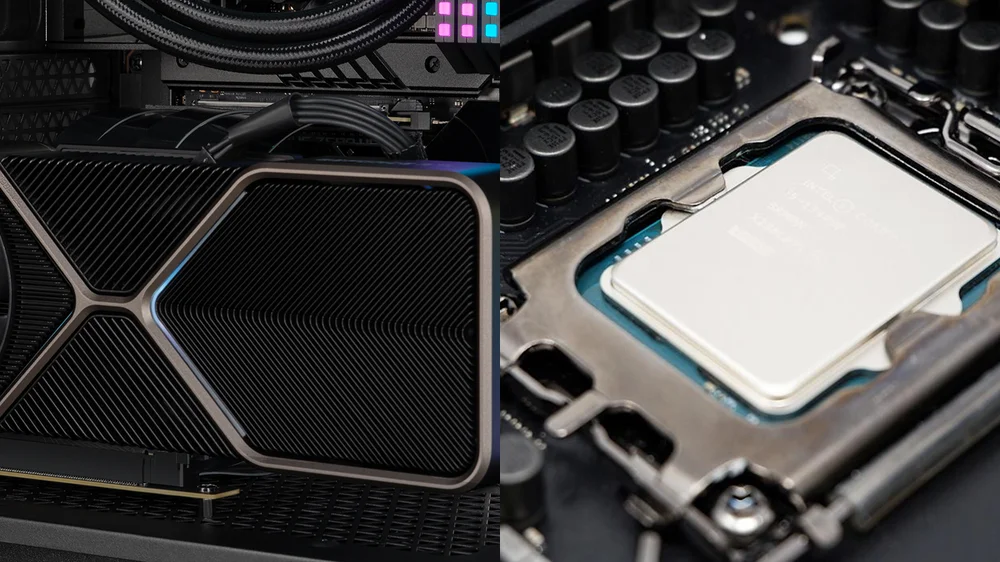
When hardware components exceed safe thresholds, thermal throttling automatically kicks in and will dial down their frequency or clock speed, causing a drop in overall PC/device performance to prevent damage.
Think of these components have built-in thermal sensors that constantly monitor temperature and relay data to the system’s firmware or OS in real time. When the temperature hits a critical point, the system adjusts the performance down.
The entire adjustment process is dynamic. This can involve lowering the clock speed, which directly reduces the number of cycles per second the processor can execute, or decreasing the voltage supplied to the processor, which further minimizes power consumption and heat output.
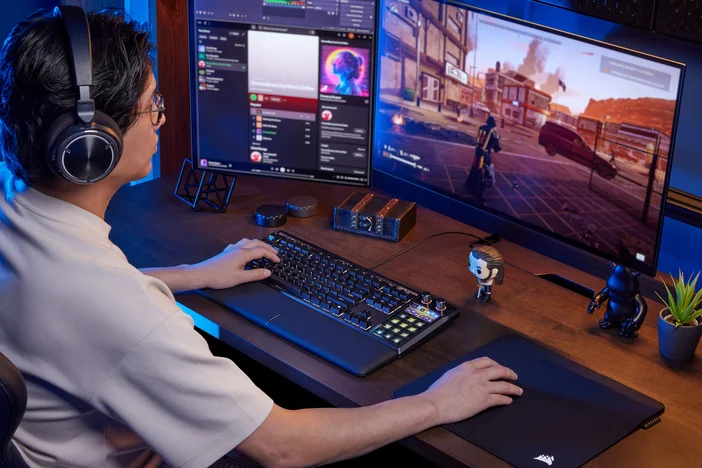
Each processor has a thermal design power (TDP) specified by the manufacturer, which indicates the maximum amount of heat it can dissipate under normal operating conditions. When the temperature of the processor exceeds this threshold, thermal throttling is activated to reduce the clock speed and voltage, resulting in a decrease in power consumption and heat generation of the CPU or GPU.

For example. When gaming on a PC and thermal throttling gets activated, first you’ll hear the PC fans get louder, then you’ll notice in-game micro stutters, and some will notice rubber banding, also known as snapping back, especially in FPS games.
Others will see a drop in frame rates, which is a big deal for those who are into competitive gaming because in the Esports environment, where every frame counts, even small drops from 240 FPS to 220 FPS can impact responsiveness.
How to Prevent Thermal Throttling
If your PC is constantly throttling, chances are there’s an underlying cooling system problem you can easily fix.
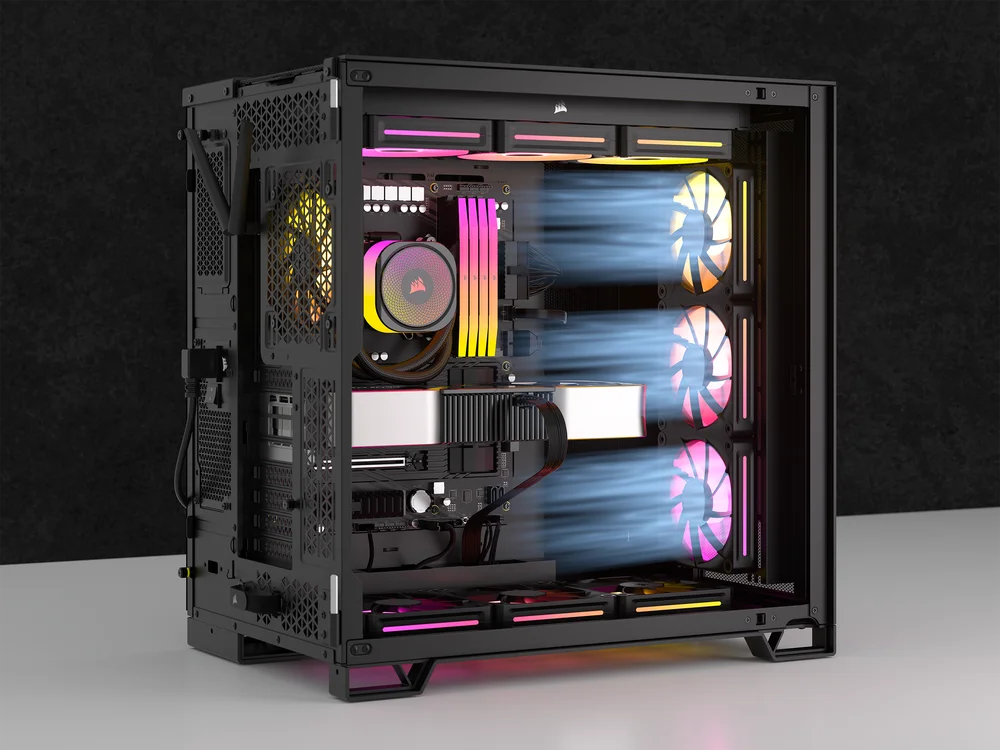
Poor airflow is a common cause of thermal throttling. This can be easily prevented by regularly cleaning dust from filters and fans, which can block airflow and cause overheating. Also, placing your PC in a well-ventilated area can greatly help lower the internal temperature inside your PC case.
Another way to reduce the effects of thermal throttling is to invest in better cooling solutions, such as high-quality fans like the iCUE LINK RX RGB and iCUE LINK LX RGB, liquid cooling systems, or even simple cable management in your PC build.
An overclocked CPU or GPU is more susceptible to thermal throttling without a strong cooling solution capable of handling the additional heat. While overclocking improves your PC’s overall performance, it also generates more heat, making it very important to have effective cooling solutions, such as high-performance AIO liquid CPU coolers CORSAIR Hydro X cooling components and high-performance AIO liquid CPU coolersiCUE LINK TITAN 420 or 360, to ensure proper thermal management.
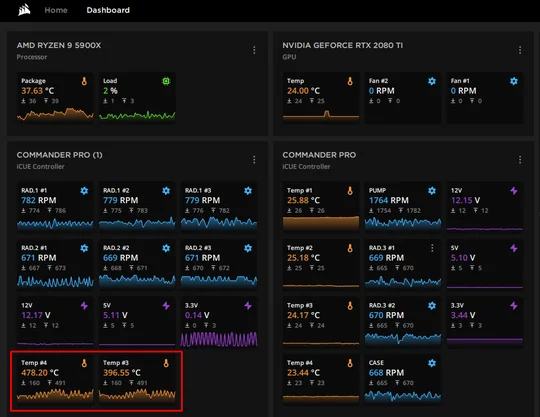
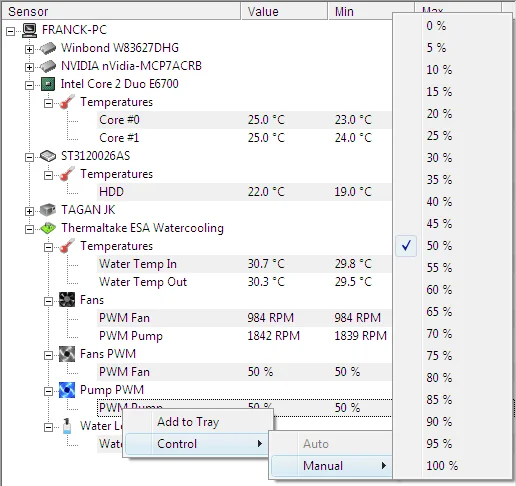
Image credit to cpuid.com
Hardware monitoring tools like iCUE Software, HWMonitor, and Core Temp are among the tools you can use to show real-time temps, clock speeds, and power usage. Knowing exactly where your PC stands in terms of thermal output, you can decide when to make changes to ensure it performs at its best when running applications like games or productivity programs.
Lastly, consider upgrading your thermal paste and ensuring your cooling system is working smoothly. Thermal paste can wear out over time, which may make it less effective at transferring heat from your CPU and GPU. Reapplying a high-quality thermal paste, such as CORSAIR XTM70 can significantly improve heat dissipation. Taking these simple yet effective steps can make a big difference in keeping your computer cool and healthy!
PRODUCTS IN ARTICLE
JOIN OUR OFFICIAL CORSAIR COMMUNITIES
Join our official CORSAIR Communities! Whether you're new or old to PC Building, have questions about our products, or want to chat about the latest PC, tech, and gaming trends, our community is the place for you.