If you’re running AI locally, you’ve probably seen the advice: “get a good GPU.” But what does that actually mean? And is your CPU really that useless? The answer isn’t as simple as “GPU good, CPU bad.” What matters is how each processor handles the math behind AI inference and which one can move data fast enough to keep up.
What’s Actually Happening During AI Inference?
When you run a local LLM or image model, your hardware is doing one thing over and over: matrix multiplication. The model takes your input, converts it to numbers, and pushes those numbers through billions of mathematical operations across its layers. The faster your hardware can crunch through those operations, the faster you get a response.
This is inference, generating output from a trained model. You’re not training anything. You’re just running the math forward, one token at a time.
How a CPU Handles AI Work
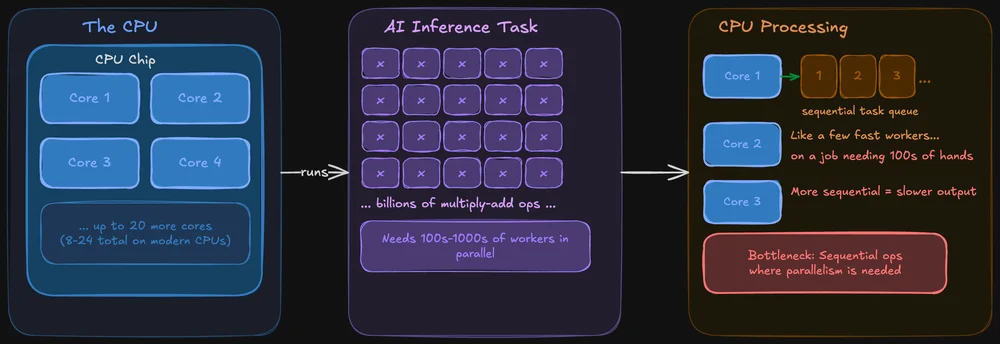
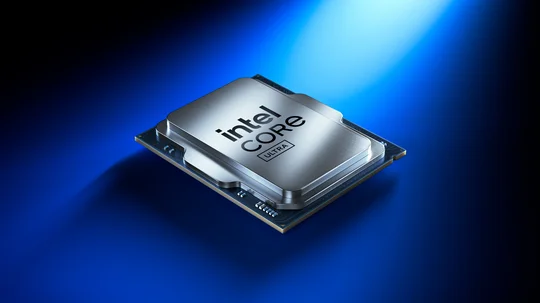
A CPU is built to be good at everything. It handles your operating system, your browser tabs, your file system, and yes, it can run AI models too. Modern CPUs have multiple cores (typically 8–24 on consumer chips), and each core is powerful and flexible.
The problem: AI inference involves doing the same operation across massive amounts of data simultaneously. A CPU can do this, but it processes those operations more sequentially. It’s like having a few very fast workers tackling a job that really needs hundreds of hands working at once.
That said, CPUs aren’t hopeless for local AI. Tools like llama.cpp are specifically optimized for CPU inference, and if your model fits in system RAM, you can absolutely run it on CPU alone. It’ll just be slower sometimes noticeably, sometimes not, depending on model size.
How a GPU Handles AI Work
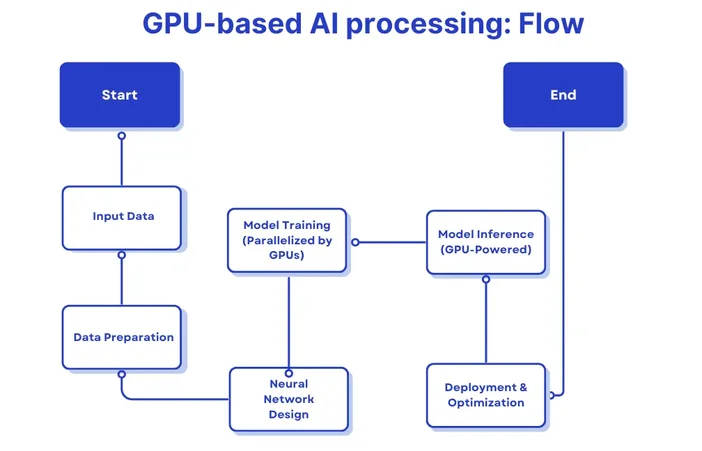
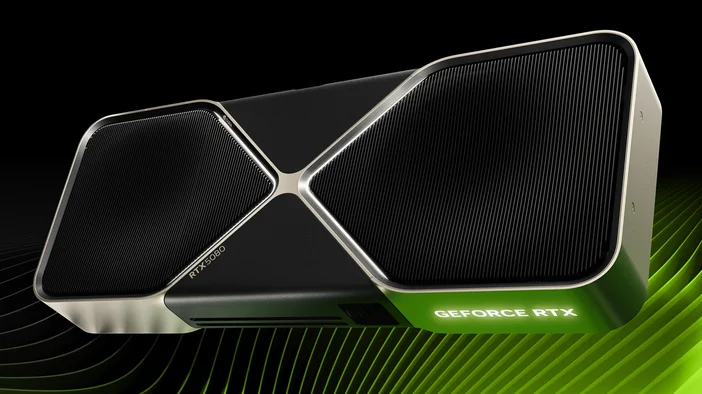
A GPU is designed around parallelism. Where a CPU might have 8–24 cores, a modern GPU has thousands of smaller cores that can all work on chunks of the same problem at once. This makes GPUs exceptionally good at the kind of bulk math that AI models depend on.
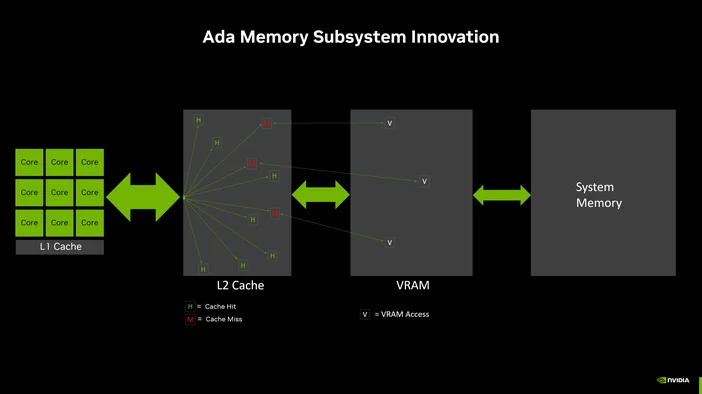
On top of that, GPUs have their own dedicated memory (VRAM) with much higher bandwidth than system RAM. That bandwidth matters a lot it determines how quickly data can be fed to those thousands of cores. More bandwidth means less time waiting and more time computing.
For local LLM inference specifically, the GPU advantage comes down to two things: parallel processing power and memory bandwidth. Both directly affect how many tokens per second you’ll see in your output.
Memory Bandwidth
Here’s something that surprises most people: for local LLM inference, raw compute power often isn’t the limiting factor. Memory bandwidth is.
During inference, the model weights need to be read from memory for every single token generated. If your memory can’t feed data to the processor fast enough, it doesn’t matter how many cores you have they’re just sitting there waiting.
This is why VRAM bandwidth is such a big deal. A typical DDR5 system memory setup might deliver 50–90 GB/s of bandwidth. A modern GPU like an RTX 5090 delivers over 1,000 GB/s. This is an order of magnitude of difference.
If your model fits entirely in VRAM, inference will almost always be faster on GPU than CPU for this reason alone.
When CPU-Only Actually Makes Sense
GPU isn’t always the answer. There are real scenarios where running on CPU is the right call:
- You’re running a small model (3B parameters or less) where the speed difference is barely noticeable.
- You don’t have a compatible GPU, or your GPU doesn’t have enough VRAM to fit the model.
- You want to use your full system RAM (which is usually much larger than VRAM) to run a bigger model at slower speed.
- You’re on a laptop or system where GPU power draw or heat is a concern.
CPU inference has gotten significantly better thanks to quantization (shrinking model precision to use less memory) and frameworks optimized for it. A quantized 7B model on a modern CPU with 32GB of RAM runs well enough for many tasks.
What About Offloading?
If your model is too big for VRAM but you still want GPU acceleration, most local LLM tools support partial offloading. This means some layers of the model run on the GPU while the rest run on the CPU.
It’s a trade-off: you get some of the GPU speed benefit, but the CPU-bound layers become a bottleneck. The more layers you can fit in VRAM, the faster it’ll be. And if only a handful of layers end up on GPU, the overhead of moving data back and forth might actually make it slower than pure CPU inference.
The rule of thumb: if you can’t fit at least half the model in VRAM, you’re probably better off running it entirely on CPU and saving yourself the complexity.
NVIDIA vs AMD for Local AI
NVIDIA dominates the local AI space right now, mostly because of CUDA. Their proprietary compute framework that nearly every AI tool is built on. If you’re using LM Studio, Ollama, or llama.cpp on Windows, NVIDIA GPUs will give you the smoothest experience with the least troubleshooting.
AMD is catching up. ROCm (AMD’s answer to CUDA) has made real progress, and tools like Ollama explicitly support AMD Radeon GPUs on Windows. But the ecosystem is still more limited, and you may hit compatibility gaps depending on your specific GPU and the tool you’re using.
If you’re buying specifically for local AI, NVIDIA is the safer bet today. If you already have an AMD GPU, it’s absolutely worth trying just check your tool’s documentation for supported models first.
Where the CORSAIR AI300 Fits
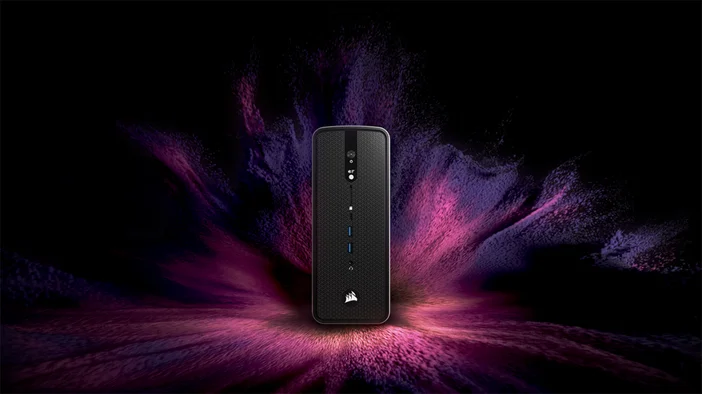
If your current setup is leaving you bottlenecked whether that’s not enough VRAM, slow memory bandwidth, or a system that overheats the moment you load a 13B model, this is the kind of problem the CORSAIR AI Workstation 300 (AI300) is built to solve.
AI300 is a compact workstation designed around the realities of local AI inference:
- High-memory configuration with room for larger models and bigger context windows.
- Graphics memory built to scale for AI workloads (and a little gaming).
- A hardware-level performance selector (Quiet / Balanced / Max) so you can prioritize speed when you need it and silence when you don’t.
- The CORSAIR AI Software Stack, which simplifies setup so you spend less time configuring and more time running models.
If you’ve been trying to squeeze local AI out of a system that wasn’t designed for it, AI300 gives you a machine where the hardware and software are actually built around the workload.
PRODUCTS IN ARTICLE
JOIN OUR OFFICIAL CORSAIR COMMUNITIES
Join our official CORSAIR Communities! Whether you're new or old to PC Building, have questions about our products, or want to chat about the latest PC, tech, and gaming trends, our community is the place for you.