MANUAL | QUICK START GUIDE
M65 RGB ULTRA
TUNABLE FPS GAMING MOUSE
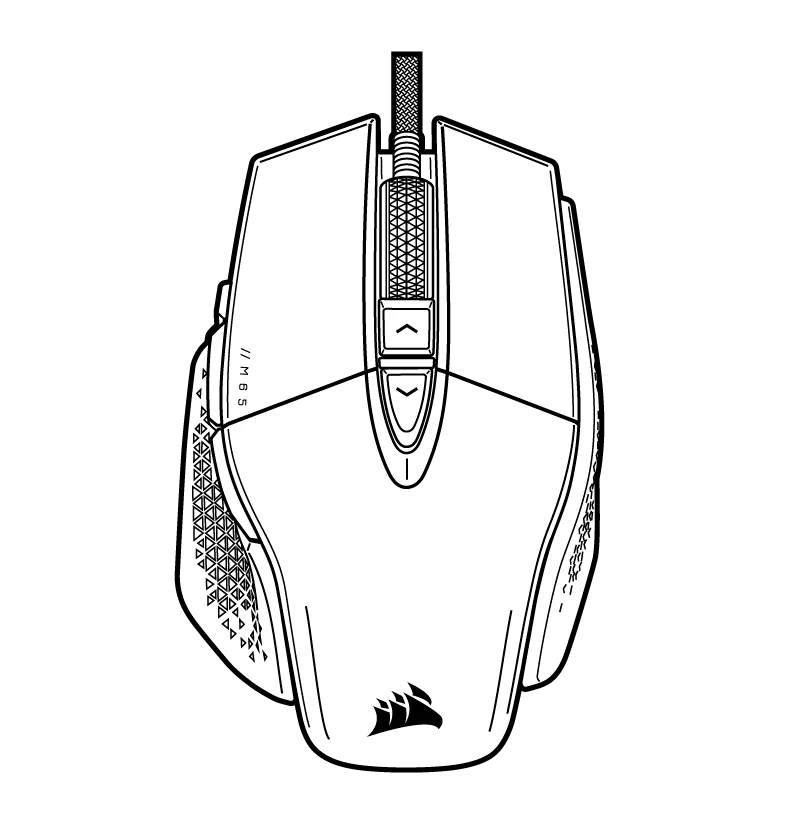
GETTING TO KNOW YOUR MOUSE
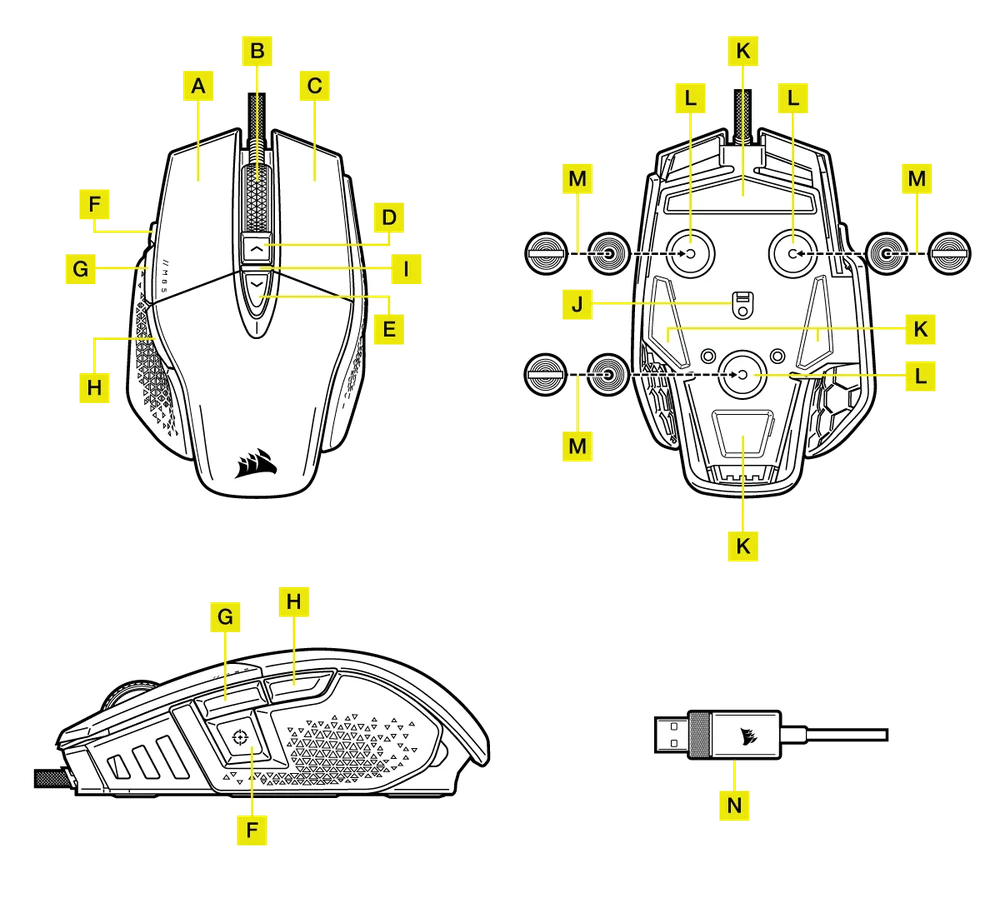
- QUICKSTRIKE LEFT CLICK BUTTON
- MIDDLE CLICK BUTTON / SCROLL WHEEL
- QUICKSTRIKE RIGHT CLICK BUTTON
- DPI UP BUTTON
- DPI DOWN BUTTON
- SNIPER / OPTION BUTTON
- FORWARD BUTTON
- BACK BUTTON
- DPI LED INDICATOR
- OPTICAL GAMING SENSOR
- PTFE GLIDE PADS
- OPTIONAL WEIGHTS SLOT
- OPTIONAL WEIGHTS PAIR (4.0G + 2.4G)*
- USB CONNECTION CABLE
*Optional weights are included in the box.
SETTING UP YOUR MOUSE
Connect the USB connection cable (N) to an available USB 2.0 or better Type-A port on your Windows® PC, Apple Mac®, or Microsoft Xbox One®.*
DPI SETTINGS AND INDICATIONS
The mouse comes preloaded with common competitive DPI settings which can be selected by pressing the DPI Up (D) or DPI Down button (E) with the DPI indicator (I) LED’s backlighting to reflect the current stage.
| DPI STAGE STATUS | DPI INDICATOR |
| STAGE #1 – 400 DPI | RED |
| STAGE #2 – 800 DPI | WHITE |
| STAGE #3 – 1200 DPI | GREEN |
| STAGE #4 – 1600 DPI | PURPLE |
| STAGE #5 – 3000 DPI | CAPRI |
ON-THE-FLY DPI TUNING
The mouse has a unique feature where you can adjust the current onboard DPI stage setting in 50 DPI increments without the software, so you can jump right into the action while you find the perfect sensitivity setting.
| FUNCTION | SHORTCUT | MULTI-PURPOSE LED INDICATOR |
| INCREASE DPI BY 50 | HOLD DPI UP BUTTON (D) AND PRESS FORWARD BUTTON (G) | BLINKING GREEN |
| DECREASE DPI BY 50 | HOLD DPI UP BUTTON (D) AND PRESS BACK BUTTON (H) | BLINKING RED |
| RESET DPI STAGE | HOLD DPI UP (D) THEN BOTH FORWARD (G) AND BACK (H) BUTTONS FOR 2 SECONDS | BLINKING YELLOW |
On-the-fly DPI changes are saved to the onboard memory and can be further adjusted in granular 1 DPI steps in iCUE. If iCUE is running, then changes are saved to the software profile directly.
COPYRIGHT / LEGAL INFORMATION
© 2021-2025 CORSAIR MEMORY, Inc. All rights reserved. CORSAIR and the sails logo are registered trademarks of CORSAIR in theUnited States and/or other countries. All other trademarks are the property of their respective owners. Product may vary slightly from those pictured.