HOW TO
CORSAIR Web Hub: How to Factory Reset Your Supported Device
If you need to restore your Web Hub supported CORSAIR device to its original factory configuration, you can easily perform a factory reset directly through our web interface. This process removes all saved profiles, lighting effects, and custom settings, returning your device to the same default state it was in when you first unboxed it.
Step-by-Step: Reset Your Device
Follow these steps to complete a factory reset using CORSAIR Web Hub:
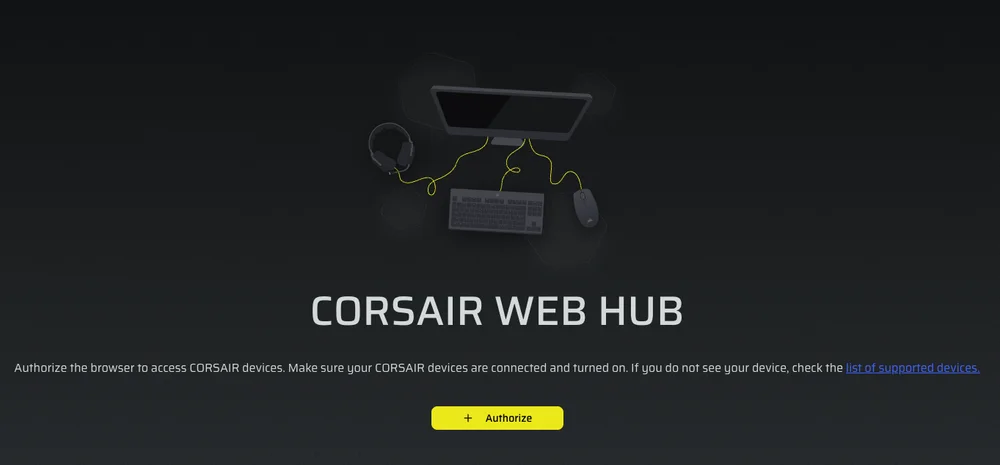
- Open CORSAIR Web Hub - Navigate to CORSAIR Web Hub and Authorize your supported device.
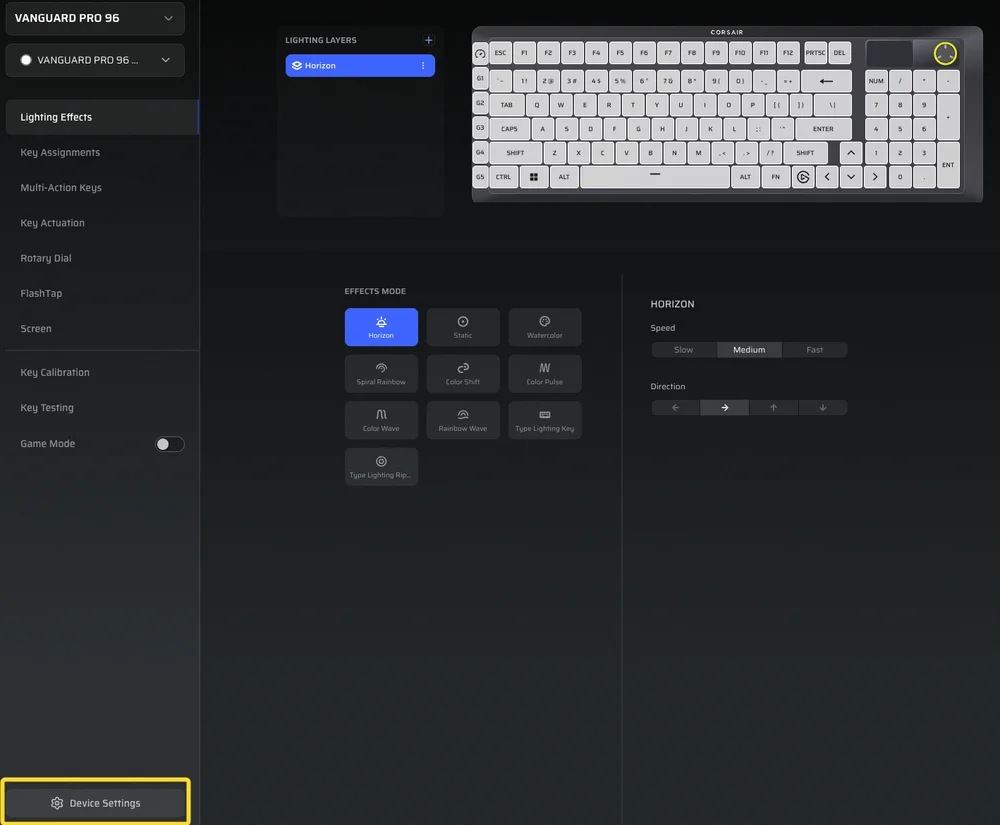
2. Access Device Settings - Scroll to the bottom of the dashboard and click Device Settings.
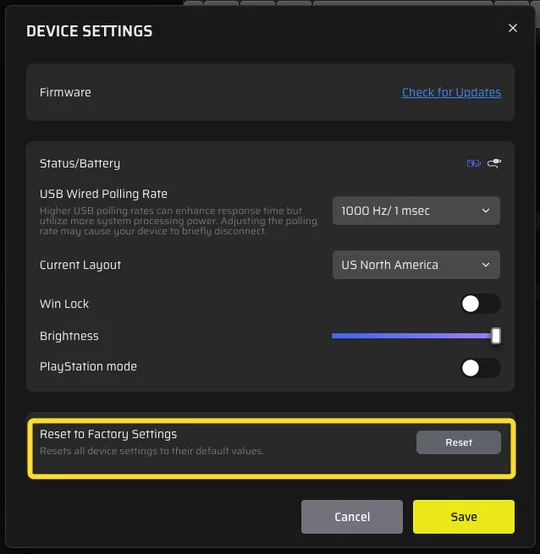
3. Select “Reset to Factory Settings” - Locate the Reset to Factory Settings option and click Reset.
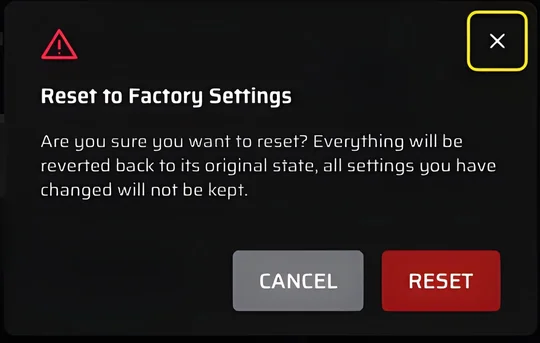
4. Confirm the Reset - A warning message will appear explaining that all customizations will be permanently deleted. Click Reset again to confirm.
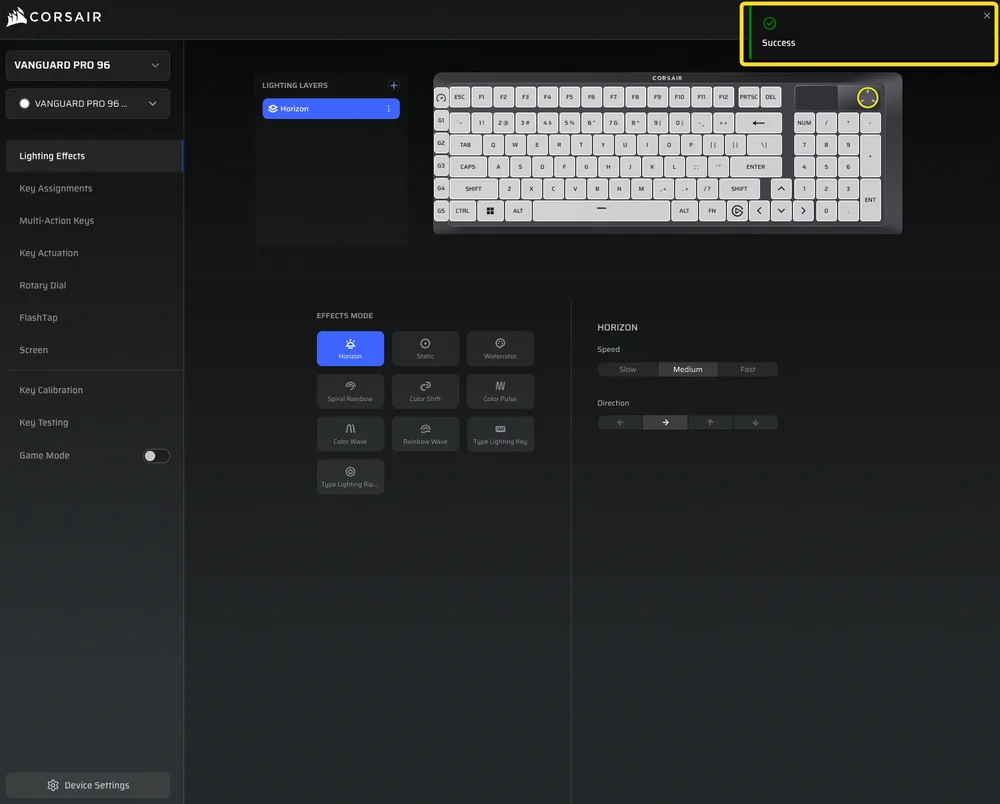
5. Wait for Completion - After a few moments, your device will automatically restart, and the Web Hub page will refresh to show your device restored to factory defaults.
Important Notes
- Data Loss Warning: Performing a factory reset will permanently delete all lighting profiles, macros, remaps, and saved configurations. Be sure to note any settings you want to keep before starting the reset.
- Troubleshooting Tip: A factory reset can help resolve persistent connectivity issues, unresponsive behavior, or configuration errors.
- After the Reset: Once the reset is complete, you can reconfigure your device.
Why Use CORSAIR Web Hub?
The CORSAIR Web Hub provides an easy, browser-based interface to manage and customize your devices without requiring additional software. With Web Hub, you can adjust settings, perform firmware updates, and reset your device anytime, anywhere—making maintenance simple and secure.
РЕГИСТРАЦИЯ ПРОДУКЦИИ
JOIN OUR OFFICIAL CORSAIR COMMUNITIES
Join our official CORSAIR Communities! Whether you're new or old to PC Building, have questions about our products, or want to chat about the latest PC, tech, and gaming trends, our community is the place for you.