The CORSAIR GALLEON 100 SD is a comprehensive and versatile gaming keyboard. To support that versatility, it has three distinct modes:
- Hardware Mode
- Web-Based Customization
- Stream Deck Mode
Each of these serves a specific purpose, allowing users to maximize the potential of the GALLEON 100 SD, so, let's get familiar with all three.
Hardware Mode
Hardware Mode is the default operating state of the GALLEON 100 SD. In this mode, the keyboard runs entirely on its onboard memory, with no software required. This is how it will function straight out of the box.
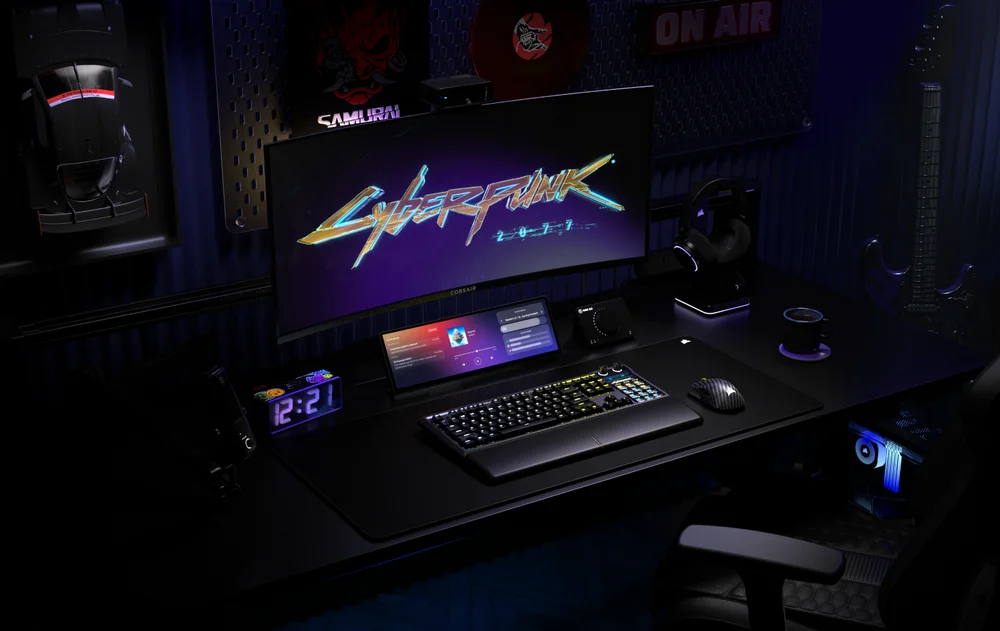
Key assignments, lighting effects, and saved profiles function independently of any applications running on the host system.
This mode is ideal for:
- Competitive gaming environments
- LAN events or tournaments
- Console use
- Systems where software installation is restricted
Because settings are stored directly on the keyboard, Hardware Mode ensures consistent behavior across different PCs. Even when switching systems, your core keyboard functionality remains intact. Stream Deck keys and deeper customization are inactive in this mode, with performance and consistency being the emphasis.
CORSAIR Web Hub
If you want to get into the nitty gritty and change and configure all aspects of the keyboard experience of the GALLEON 100 SD, you'll need to use CORSAIR Web Hub. This browser-based interface allows users to customize keyboard behavior without installing full desktop software.
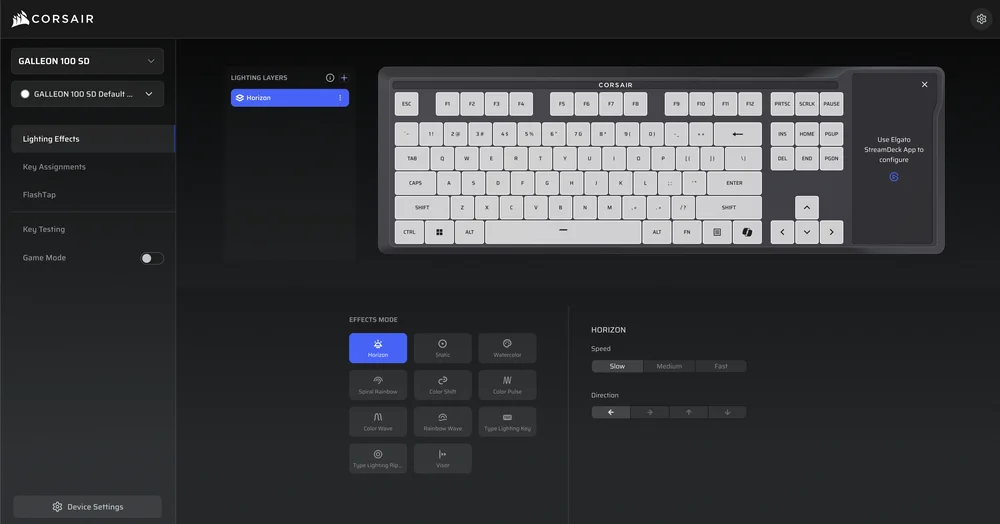
With CORSAIR Web Hub, users can:
- Adjust RGB lighting and brightness
- Configure performance settings
- Manage onboard profiles
- Modify key behavior and shortcuts
- Perform firmware updates
Because Web Hub runs directly in a browser, it’s fast, accessible, and ideal for quick changes. Once settings are applied, they can be saved back to the keyboard’s onboard memory, making them persist even when Web Hub is no longer active.
After you've made your desired changes via Web Hub, you can close it down and use the keyboard as normal, including the functionality from Stream Deck mode.
Stream Deck Mode
Stream Deck Mode is where GALLEON 100 SD truly distinguishes itself. In this mode, the integrated 12 Stream Deck keys, dual rotary dials, and LCD screen are activated and controlled through the Elgato Stream Deck app.

Stream Deck Mode enables:
- Fully customizable shortcut keys with dynamic icons
- Multi Actions that trigger multiple commands with a single press
- Real-time app, audio, and hardware control
- Live information displayed on the integrated LCD screen
This mode is designed for streamers, creators, and power users who rely on fast access to complex workflows. Actions such as switching scenes, muting microphones, launching apps, controlling music, or monitoring stream performance can all be executed without leaving the keyboard. If you're familiar with Elgato Stream Deck and/or Stream Deck +, then you'll understand what this part of the GALLEON 100 SD is capable of.
To be clear, Stream Deck Mode does not supersede or change anything you customize with Web Hub.
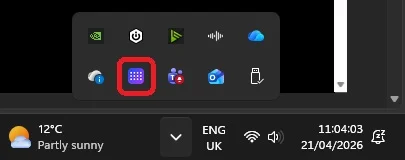
Stream Deck Mode requires the Stream Deck app to be running, just like a normal stream deck. This app is lightweight and lives quietly in the system tray so it's easily accessible if you want to make any changes on the fly.
РЕГИСТРАЦИЯ ПРОДУКЦИИ
Stay up to date with CORSAIR. Get our latest News, Guides, and Product Updates in your Google feeds.
Add CORSAIR as a preferred source
JOIN OUR OFFICIAL CORSAIR COMMUNITIES
Join our official CORSAIR Communities! Whether you're new or old to PC Building, have questions about our products, or want to chat about the latest PC, tech, and gaming trends, our community is the place for you.