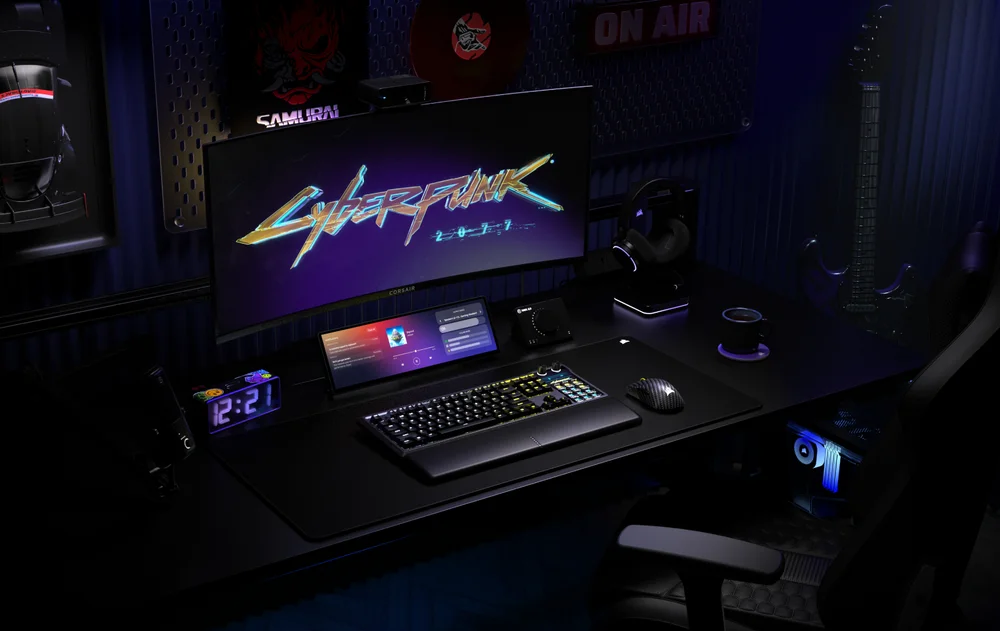
Whether your gaming session is hyper competitive or completely casual, minimizing (or removing) interruptions is always a good thing. That’s where Game Mode on the CORSAIR GALLEON 100 SD comes in.
What Does Game Mode Do?
Game Mode puts the keyboard into an alternate operating mode that toggles a handful of settings to optimize the keyboard for gaming. Each of the following default settings can be toggled or adjusted to your preferences:
- USB Wired Polling Rate increases from 1000 Hz to 8000 Hz for maximum performance
- Win Lock ON - Windows key is disabled during Game Mode
- RGB Brightness 100% - can adjust to minimize distractions
- Animate Game Mode Activation ON - visually indicate when Game Mode is enabled
- Static Lighting ON - animated lighting effects are disabled
- Static Lighting Color RED - adjust to your preferred color profile
- FlashTap OFF - modify FlashTap settings to adjust how SOCD inputs are processed
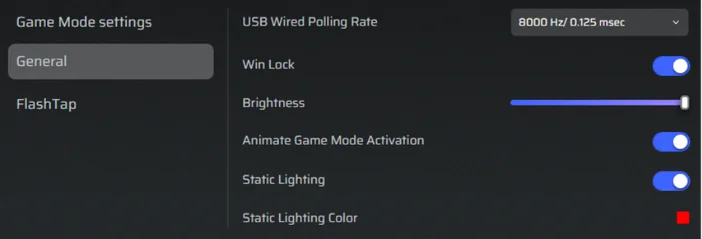
To change these settings, first navigate to CORSAIR WEB HUB, then authorize GALLEON 100 SD. Select Game Mode from the left panel, then adjust Game Mode-specific settings in the main panel.
Note: Default USB Polling Rate is 1000 Hz to match the non-Game Mode default polling rate. If the polling rate is different between Game Mode and non-Game Mode, the keyboard will take a few seconds to re-initiate the USB connection when switching between modes.
How to Enable Game Mode
- Game Mode can be enabled directly from the keyboard or from Web Hub.
- Keyboard Shortcut: Fn + F1 to toggle Game Mode
- Web Hub: Connect to GALLEON 100 SD in Web Hub, then toggle Game Mode in the side panel
When to Use Game Mode
Game Mode is best suited for those times that any distractions will mean the end of a game or match, or when performance and focus are paramount. With the default settings disabling the Windows key, and optionally enabling 8 kHz hyper-polling, Game Mode is well suited to those critical gaming sessions.
REGISTRO DE PRODUTOS
Stay up to date with CORSAIR. Get our latest News, Guides, and Product Updates in your Google feeds.
Add CORSAIR as a preferred source
JOIN OUR OFFICIAL CORSAIR COMMUNITIES
Join our official CORSAIR Communities! Whether you're new or old to PC Building, have questions about our products, or want to chat about the latest PC, tech, and gaming trends, our community is the place for you.