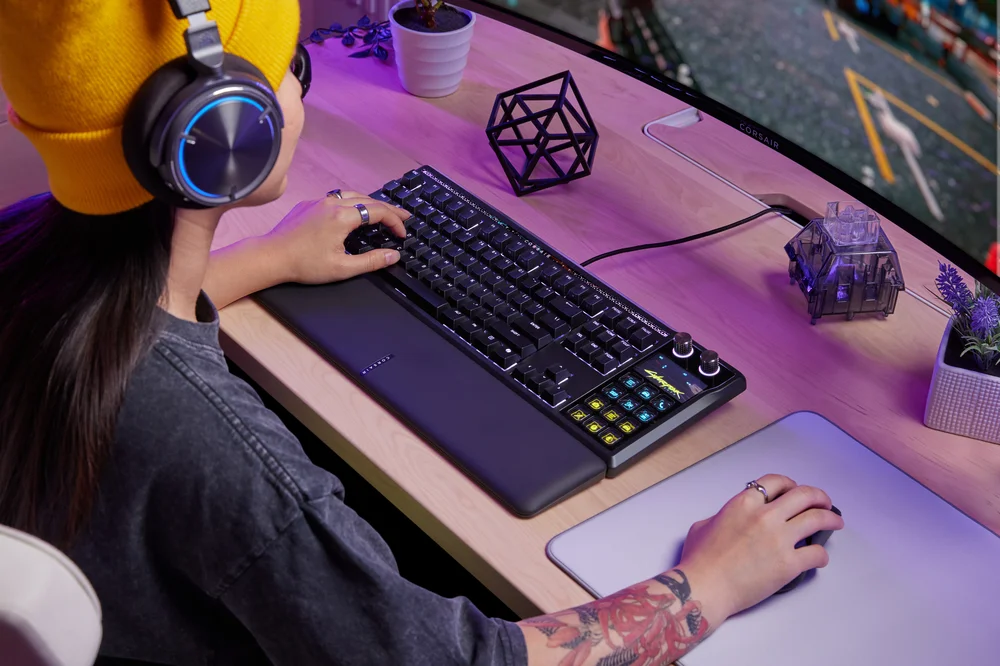
The CORSAIR GALLEON 100 SD features multiple methods of automating and streamlining controls for both gaming and productivity. One of the more subtle, but still powerful, options is recording Macros both in Web Hub software and on the keyboard itself.
What is a Macro?
A Macro is a series of inputs that are triggered by a single keypress, most commonly used to automate repetitive tasks that will be performed many times. They also allow for precise timing of inputs which can help with automating repetitive actions in-game.
Whether you are triggering scene changes while streaming, manipulating spreadsheet data, or automating combos, GALLEON 100 SD has you covered.
Recording Macros on The GALLEON 100 SD
Macros can be recorded on the fly, without the need for additional software interactions. Simply enter Macro Recording Mode, input the desired key combination, then exit Macro Recording Mode.
- Hold Fn + M keys for 2 seconds to enter macro recording mode
- Press the series of keys that you want to trigger when the macro is run (note that the timing between key presses will be preserved)
- Press Fn + M keys momentarily to stop recording macro
- Press the key that will trigger the macro (this can be a single key, Fn + key combo, or Modifier (Ctrl/Shift/Alt/AltGr) + key combo)
If you wish to remove a previously stored macro, skip Step 2 above; entering macro mode and assigning a blank macro to a key will remove any macro that had been assigned to that key prior.
Recording Macros in Software
For a bit more control over the minutiae of macro recording, you can instead record and modify macros in Web Hub software.
- Navigate to CORSAIR WEB HUB and authorize GALLEON 100 SD within the software
- Select Assignments in the left panel, then click Macro from the list of Assignment options in the main window
- Select the key that will trigger the macro (note – select Fn Layer under Key Layers to assign a macro to an Fn key combo)
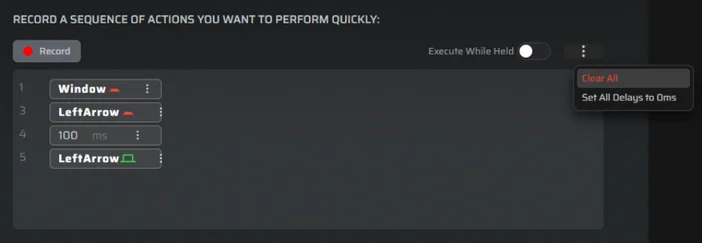
- Click “Record”, then record the series of keys that you want to trigger when the key is pressed, then click “Stop”
- The sequence of recorded inputs is now shown in the macro window on the screen
- From this window, individual key presses can be removed if any mistakes were made during the recording process
- Additionally, all delays can be set to 0 ms from the 3-dot option menu in the upper right
- Macros recorded on-device can be viewed and modified in software after the fact
REGISTRO DE PRODUTOS
Stay up to date with CORSAIR. Get our latest News, Guides, and Product Updates in your Google feeds.
Add CORSAIR as a preferred source
JOIN OUR OFFICIAL CORSAIR COMMUNITIES
Join our official CORSAIR Communities! Whether you're new or old to PC Building, have questions about our products, or want to chat about the latest PC, tech, and gaming trends, our community is the place for you.