BLOG
GALLEON 100 SD Factory Reset Guide, Compatibility, BIOS, and PlayStation mode
Utolsó frissítés:
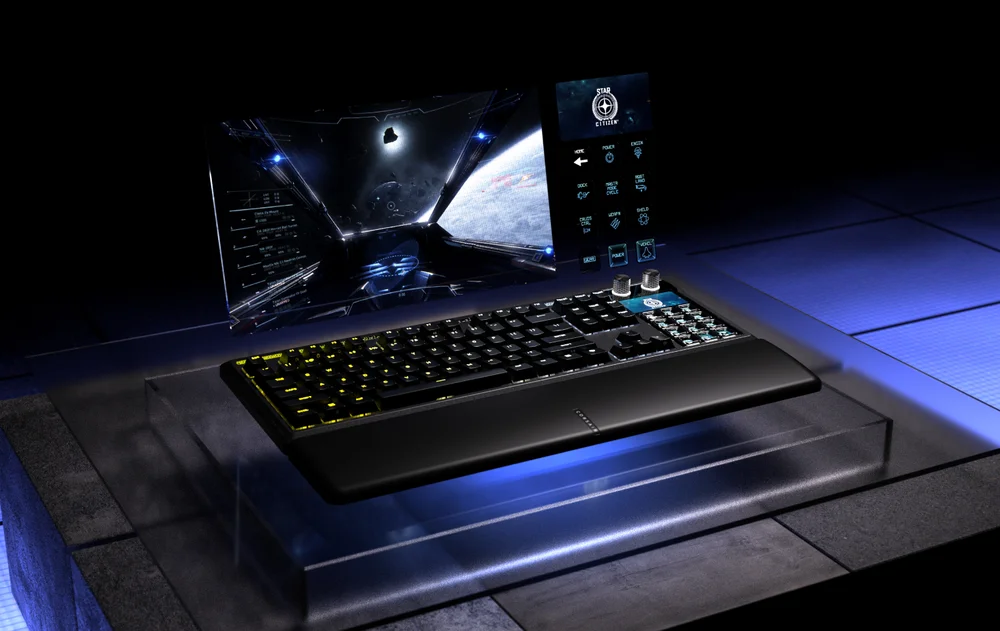
In addition to the many features and functions built into the CORSAIR GALLEON 100 SD keyboard, there are also a few key utility functions under the hood that will be useful for specific scenarios – Factory Reset, Compatibility/PlayStation Mode, and BIOS Mode.
Factory Reset
If the GALLEON 100 SD ever needs to be reset to factory settings for any reason, initiate a Factory Reset using the following method:
- Unplug the keyboard from USB
- Hold the B + L keys
- Plug the keyboard in to USB while continuing to hold the keys
- After 2-10 seconds, the keyboard LEDs will flash, indicating that the process is complete; release the keys and proceed
A Factory Reset may be needed if the firmware update process fails, causing a disconnection of the keyboard and interruptions to functionality or operation. Additionally, a Factory Reset might be helpful if adjustments have been made to the keyboard configuration that have caused issues in operation, or if you want to quickly erase any onboard memory profiles/settings.
Compatibility/PlayStation Mode
Compatibility Mode (also known as PlayStation Mode) is used to connect to PlayStation 4 or PlayStation 5, along with other devices that might encounter odd behavior when GALLEON 100 SD is used in regular operation mode. Enable and disable Compatibility Mode as follows:
- Enable Compatibility Mode: Hold Fn + WIN for 5 seconds (WIN key indicator will blink white 5 times over 5 seconds)
- Disable Compatibility Mode: Hold Fn + WIN for 5 seconds (WIN key indicator will blink white 2 times over 2 seconds)
Compatibility Mode limits the keyboard output to:
- 13-keys (13 key rollover) + Modifier Keys (Ctrl, Alt/AltGr, Shift, Windows)
- Media Keys do still output
- Actual Polling Rate may differ from the Standard Mode setting, due to PS USB interface limitations
BIOS Mode
In order to ensure maximum compatibility of GALLEON 100 SD when interacting with BIOS software, a specific BIOS Mode has been developed. BIOS Mode can be enabled as follows:
- Unplug the keyboard from USB
- Hold the B + S keys
- Plug the keyboard in to USB while continuing to hold the keys, then release after plugging in
- To swap back to Standard Mode, hold the Esc key while plugging the keyboard in to USB (this will clear EEPROM but not perform a factory reset)
BIOS Mode limits the keyboard output to:
- 6-keys (6 key rollover) + Modifier Keys (Ctrl, Alt/AltGr, Shift, Windows)
- Media Keys do not output
- Polling Rate is fixed at 125 Hz
PlayStation Mode
PlayStation Mode configures the GALLEON 100 SD to operate correctly when connected to supported PlayStation consoles. Console platforms handle keyboard input differently than PCs, and this mode ensures proper recognition, button mapping, and system-level compatibility.
PlayStation Mode is intended for:
- Console gaming on PlayStation systems
- Navigating console menus
- In-game text entry and supported gameplay input
A CIKKBEN SZEREPLŐ TERMÉKEK
JOIN OUR OFFICIAL CORSAIR COMMUNITIES
Join our official CORSAIR Communities! Whether you're new or old to PC Building, have questions about our products, or want to chat about the latest PC, tech, and gaming trends, our community is the place for you.