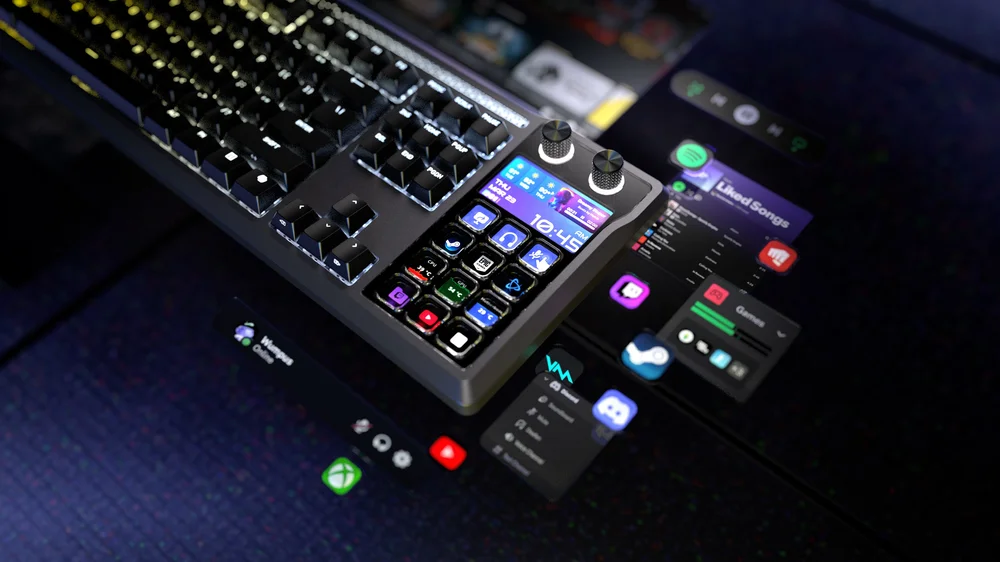
The CORSAIR GALLEON 100 SD brings Elgato Stream Deck functionality directly onto your keyboard, giving you instant access to shortcuts, automations, and real-time controls without adding another device to your desk. One of the most powerful and approachable parts of this experience is how actions are created: through simple drag-and-drop setup in the Elgato Stream Deck app.
This guide walks through how to create and assign actions step by step, helping you unlock the full potential of the integrated Stream Deck keys, dials, and display.
Getting Started: Stream Deck Mode and Software
Before assigning actions, ensure the GALLEON 100 SD is operating in Stream Deck Mode and that the Elgato Stream Deck app is installed and running on your system. Once detected, the keyboard appears in the Stream Deck interface just like a standalone Stream Deck device.
On screen, you’ll see a visual layout representing the 12 Stream Deck keys, along with controls for pages, folders, and profiles. This interface is where all configuration happens and no coding or scripting is required.
What Is an Action in Stream Deck?
An action is a single task that can be triggered with one press or turn. Actions range from simple command like launching an app or muting a microphone to complex Multi Actions that execute several steps in sequence.
Examples include:
- Switching streaming scenes
- Triggering in-game hotkeys
- Adjusting audio levels
- Controlling Discord, Spotify, OBS, or system functions
- Displaying live widgets like CPU usage or Twitch stats
Each action lives in the Stream Deck action library, organized by category and plugin.
Setting Up an Action with Drag and Drop
Creating an action is intentionally straightforward:
- Open the Stream Deck app
Navigate to the action panel on the right side of the interface. - Browse or search for an action
Actions are grouped by type, such as System, Hotkey, Multimedia, or third-party plugins. You can also search directly. - Drag the action onto a Stream Deck key
Click and drag the desired action onto any on-screen key that corresponds to the physical key on your GALLEON 100 SD. - Configure the action
Once placed, the action’s settings appear below. Here you can define details such as:- Assigned hotkeys
- Target application
- Text or commands
- Toggle behavior or state changes
As soon as the action is dropped, it becomes live. Pressing the physical key on the keyboard immediately triggers it.
Using Icons, Pages, and Folders
Each Stream Deck key supports custom icons, making actions easy to identify at a glance. You can:
- Use default icons
- Import custom images or animations
- Download icon packs from the Elgato Marketplace
For more advanced setups, you can organize actions using pages and folders. This allows a single key to open a new set of actions, dramatically expanding how many commands you can access without clutter.
Advanced Actions with Multi Actions and Dials
For power users, Multi Actions allow multiple steps to be chained together, such as changing scenes, muting audio, and sending a chat message with one press. On the GALLEON 100 SD, these actions can also be assigned to the rotary dials, enabling intuitive controls like volume adjustment, timeline scrubbing, or parameter changes with a turn instead of a click.
Profiles for Games and Workflows
The Stream Deck app supports profiles, which automatically switch layouts based on the active application. This means your GALLEON 100 SD can show one set of actions for a game, another for streaming software, and another for productivity without needing to manually switch.
Ready-made profiles and plugins are available through the Elgato Marketplace, helping users get started quickly or build on proven workflows.
Designed to Be Powerful and Approachable
The drag-and-drop design of the Stream Deck app is what makes the GALLEON 100 SD so accessible. Beginners can create useful actions in minutes, while advanced users can build layered, automated control systems that rival dedicated control surfaces.
By integrating Stream Deck software directly into the keyboard, GALLEON 100 SD turns customization into something you use, not something you configure once and forget.
That’s the power of drag-and-drop control right at your fingertips.
PRODUCTS IN ARTICLE
JOIN OUR OFFICIAL CORSAIR COMMUNITIES
Join our official CORSAIR Communities! Whether you're new or old to PC Building, have questions about our products, or want to chat about the latest PC, tech, and gaming trends, our community is the place for you.