快速启动指南
平台系列
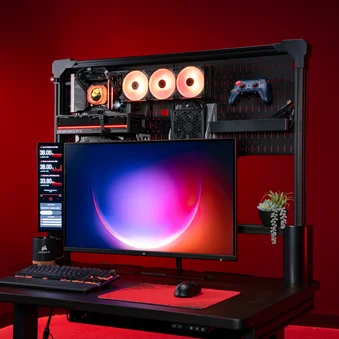
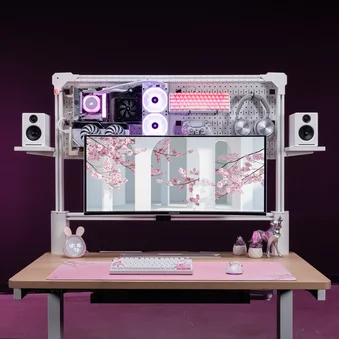
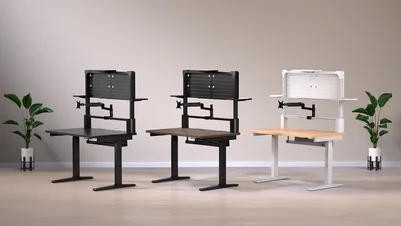
模块化电脑桌

开始之前
恭喜您购买了新的 CORSAIR Platform 系列办公桌。
请在组装前仔细阅读本指南。
平台系列办公桌 - 零部件清单
大宗物品清单
* 不提供平台:4
**某些型号需单独购买

桌面(1x)

T 型通道导轨(1x)

脚 (2x)

左右腿(各 1x)

D 型支架(2 个)

电线管理托盘(1 个)

横梁支撑杆(1x)

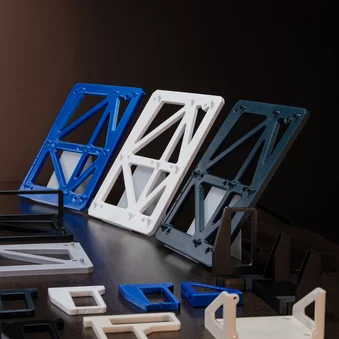
左右角支架(各 1 个)

3 端口电源插座(1 个)

立方体模块 (1x)
(预装 Platform:6)

小物品清单
*不提供平台:4
** 某些型号需单独购买
*** 仅限 Elevate 型号

M4 15 毫米螺栓(2 个)

M6 10 毫米螺栓(8 个)

M6 15 毫米螺栓(10 个)

M8 15 毫米螺栓(16 个)

M6 黑色 T 形螺母(10 个)

1/4" 20 银色 T 型螺母(6 个)

翼形螺母螺钉(2 个)
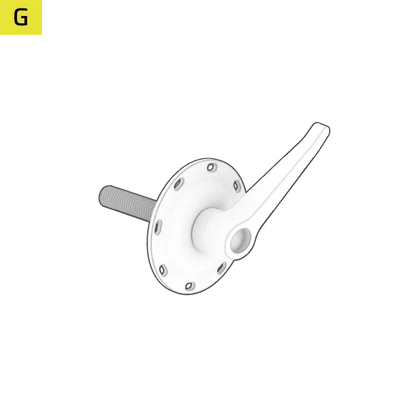
棘轮螺栓(2 个)

电源线导轨安装(1 个)

电源线桌面支架(1 个)

控制器 (1x)

直电缆通道(2x)

弧形电缆通道(2x)

电源(1 个)

小型电线管理托盘(2 个)
(1 个带平台:4)

Elgato 柔性臂适配器(1 个)
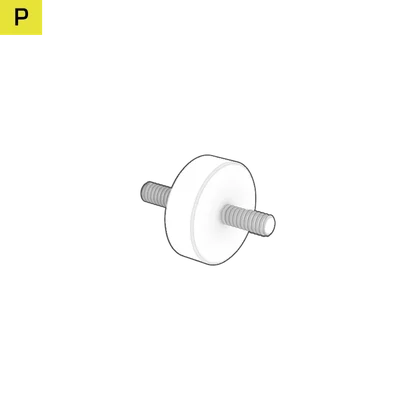
Elgato 多功能安装适配器(2 个)

支撑杆盖(2x)

木钉(4 个)

电源线(1x)

带扣魔术贴(10 个)
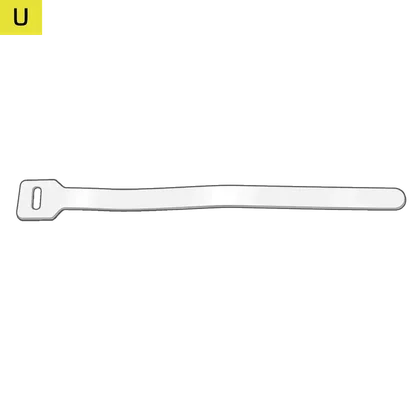
魔术贴(10 个)

棘轮扳手和 5 毫米六角头(1 个)

3 毫米六角工具(1x)

5 毫米六角工具(1x)

六角/十字组合工具(1x)

电缆夹(6 个)
(5 个,带平台:4)
工具和五金包

第 1 步 硬件
M8 15 毫米螺栓(16 个)

第 2 步 五金
M6 10 毫米螺栓(2 个)
M6 15 毫米(4 个)
翼形螺母螺钉(2 个)

第 3 步 五金
M4 15 毫米螺栓(2 个)
M6 15 毫米螺栓(2 个)
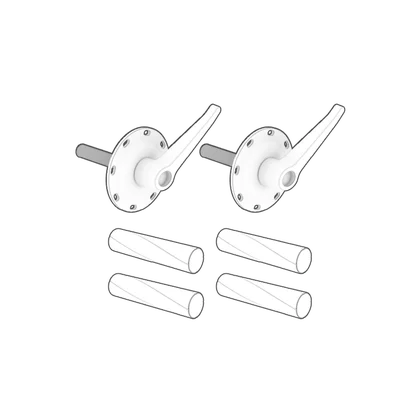
第 5 步 硬件
棘轮螺栓(2 个)
木钉(4 个)

第 6 步 五金
M6 10 毫米螺栓(6 个)

黑色 T 型螺母
M6 黑色 T 型螺母(10 个)

银 T 形螺母
1/4" 20 银 T 形螺母(6 个)

绑带
带扣魔术贴绑带(10 件)
魔术贴绑带(10 件)

备用零件(附件)
T 型螺母固定螺钉(3 个)
M6 10 毫米螺栓(4 个)
M6 15 毫米螺栓(4 个)
M8 15 毫米螺栓(2 个)
木榫头(2 个)
组装平台系列办公桌
将桌面铺在硬纸板、毯子或地毯上。

1:安装腿和脚
为完成该步骤,将使用以下硬件和工具:

脚 (2x)

左右腿(各 1 次)

M8 15 毫米螺栓(16 个)

棘轮扳手和 5 毫米六角头(1 个)

5 毫米六角工具(1x)
- 注意每条腿上的 L 和 R 标记。
- 安装左右支腿(4),并分别用四个 M8 15 毫米螺栓(D) 固定。

- Place the Feet (3) onto the Right and Left Legs (4) and secure each with four M8 15mm Bolts (D).

2:安装电线管理托盘
为完成该步骤,将使用以下硬件和工具:

D 型支架(2 个)

电线管理托盘(1 个)

M6 10 毫米螺栓(2 个)

M6 15 毫米螺栓(4 个)

翼形螺母螺钉(2 个)
棘轮扳手和 5 毫米六角头(1 个)
5 毫米六角工具(1x)
- 安装两个 D 型支架(5)。注意如下图所示的正确方向。
- 用两个 M6 15 毫米螺栓(C) 将每个螺栓固定。
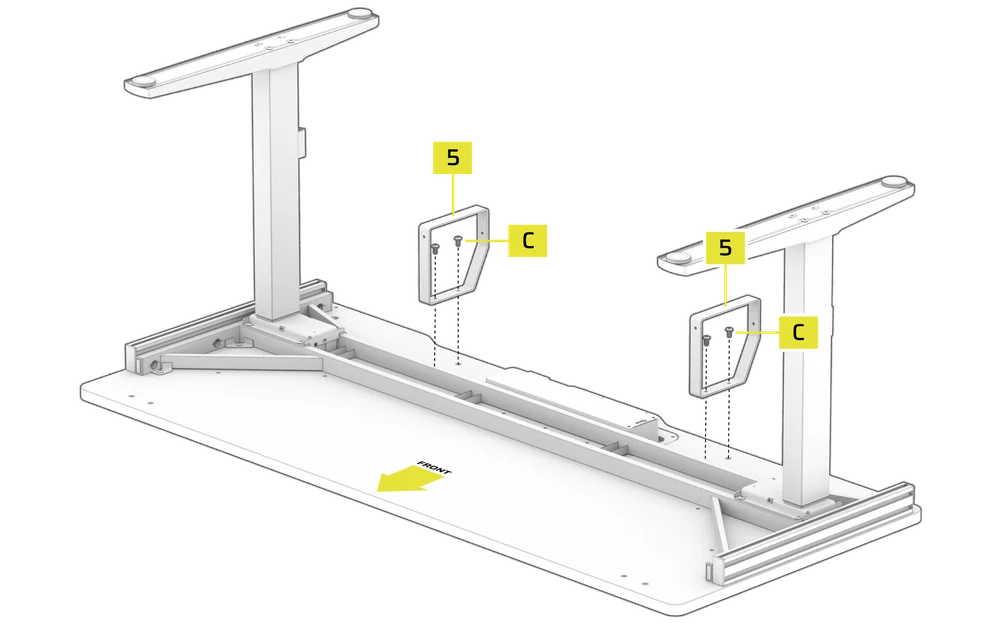
- Place the Wire Management Tray (6) over the D-Brackets (5).
- Secure the front of the Wire Management Tray (6) with two Wing Nut Screws (F).

- Secure the rear of the Wire Management Tray (6) with two M6 10mm Bolts (B).

3:安装控制器和电源
为完成该步骤,将使用以下硬件和工具:

M4 15 毫米螺栓(2 个)

M6 15 毫米螺栓(2 个)

控制器 (1x)

电源(1 个)

电源线(1x)
棘轮扳手和 5 毫米六角头(1 个)
5 毫米六角工具(1x)

六角/十字组合工具(1x)

电缆夹(6 个)
(4 个,带平台:4)
- 如图所示,将控制器(K) 放在桌子上的预钻孔中,并用两个 M6 15 毫米螺栓(C) 将其固定。

- Install the Cable Clips (Z) by pushing them firmly into the holes located on the bottom side of the desk.

- Place the Power Supply (M) between the rails with the HS port facing the previously installed Controller (K) and secure it using two M4 15mm Bolts (A).

- Wire the two motors (Ω) to the M1 and M2 ports on the Power Supply (M).
- Wire the Controller (K) to the HS port on the Power Supply (M).
- Plug the Power Cable (S) to the AC port on the Power Supply (M).
- Route the cables through the Cable Clips to keep them secure.

4:安装隔间模块和横梁支撑杆
为完成该步骤,将使用以下硬件和工具:

横梁支撑杆(1x)

储物箱模块(1x)

支撑杆盖(2x)
棘轮扳手和 5 毫米六角头(1 个)
5 毫米六角工具(1x)
- 将桌子翻转到脚上。

- Slide the Cubby Module (11) assembly into the empty slot on the tabletop. The module will click once it is fully seated.

- Attach the Crossbeam Support Bar (7) by aligning its large holes over the half-threaded bolts on the rear of the legs.
- Push the Crossbeam Support Bar (7) down until it is even on both sides.
- Once secure, tighten the bolts fully.

- Carefully but firmly snap the Support Bar Covers (Q) over the ends of the Crossbeam Support Bar (7).

5:T 型槽导轨组件
为完成该步骤,将使用以下硬件和工具:

T 型通道导轨(1x)

左右角支架(各 1 个)
M6 15 毫米螺栓(2 个)

棘轮螺栓(2 个)

木钉(4 个)
棘轮扳手和 5 毫米六角头(1 个)

3 毫米六角工具(1x)
5 毫米六角工具(1x)
- 将两个木钉(R) 插入桌子左右两端的对准孔中。
- 将左角支架(8) 放到木榫(R) 上。
- 对准左角支撑(8),用棘轮螺栓(G) 将其完全固定在桌面上。

- Tighten the Ratchet Bolt (G) by rotating the lever clockwise.
- Pull the Ratchet Bolt (G) lever downwards and rotate it counterclockwise.

- Repeat until secure.
- Alternatively, pull and hold the Ratchet Bolt (G) lever down and tighten it using the 5mm Hex Tool (X).

- Slide the T-Channel Rail (2) over the horizontal T-Nuts on the Left Corner Support (8) but do not tighten the set screws inside the T-Nuts yet.

- Slide the T-Channel Rail (2) over the horizontal T-Nuts on the Right Corner Support (8) but do not tighten the set screws inside the T-Nuts yet.
- Lower the Right Corner Support (8) with the attached T-Channel Rail (2) onto the Wood Dowels (R) and secure it fully to the desk using the Ratcheting Bolt (G).

- Using a 3mm Hex Tool (W), tighten the four set screws inside the T-Nuts until the T-Channel Rail (2) is rigid and sturdy.

6:T 型螺母、电源插座和电线管理安装(可选)
为完成该步骤,将使用以下硬件:
**某些型号需单独购买

3 端口电源插座(1 个)

M6 10 毫米螺栓(10 个)

M6 黑色 T 形螺母(10 个)

电源线导轨安装(1 个)

电源线桌面支架(1 个)

直电缆通道(2x)

弧形电缆通道(2x)

小型电线管理托盘(2 个)
(1 个带平台:4)

带扣魔术贴(10 个)

魔术贴(10 个)
3 毫米六角工具(1x)
5 毫米六角工具(1x)
六角/十字组合工具(1x)
T 型螺母安装
使用 T 型螺母可以在平台的 T 型槽导轨系统上添加附件和延伸件。黑色 T 型螺母为 M6 螺纹,用于组装扩展件和附件。银色 T 型螺母为四分之一英寸螺纹,与 Elgato 支架产品兼容。
要在 T 型槽导轨上添加和固定 T 型螺母,请按照以下步骤操作:


1.水平旋转 T 形螺母。
2.将 T 型螺母侧向滑入 T 型槽导轨。


3.将 T 型螺母装入插槽后,将其旋转回正确方向。
4.使用 3 毫米六角工具,拧紧 T 形螺母内的固定螺钉,将其固定到位。
插线板和电线管理安装
3 端口电源插座可夹在桌面上,也可连接到 T 型导轨系统上。

将 3 端口电源插座夹在桌面上(可选)
- 在桌子上找一个合适的位置,顺时针拧紧手柄螺钉,将电源线桌面安装座(I) 与安装好的 3 端口电源线(9) 固定在一起。
- 将电源线插入电源插座。

将 3 端口电源插座连接到导轨系统(可选)
- 使用六角/十字组合工具(Y),松开并卸下电源条桌面安装座(I) 的十字中心螺丝,然后将 3 端口电源条(9) 从安装板中滑出。
- 将两个 M6 黑色 T 形螺母(E1) 插入 T 形槽导轨(2) 的背面。先不要拧紧固定螺钉。

- Align the mounting bracket holes of the Power Strip Rail Mount (H) with the holes in the M6 Black T-Nuts (E1).
- Loosely secure the Power Strip Rail Mount (H) to the M6 Black T-Nuts (E1) by screwing in two M6 10mm Bolts (B) and slide the Power Strip Rail Mount (H) to the desired position.
- Slide the 3-Port Power Strip (9) onto the mounting bracket of the Power Strip Rail Mount (H) from the open side and secure it with the previously removed Phillips center screw.
- Tighten all the bolts.

安装小型电线管理托盘(可选)
您可以使用随附的小型线缆管理托盘(N),用随附的尼龙搭扣带(T和U)捆绑线缆,清理工作空间。
- 将两个 M6 黑色 T 形螺母(E1) 插入 T 形槽导轨(2) 的背面。先不要拧紧固定螺钉。
- 将小导线管理盘(N) 的安装孔与 M6 黑色 T 形螺母(E1) 的孔对齐。
- 拧上两个 M6 10 毫米螺栓(B),将小导线管理盘(N) 松散地固定在 M6 黑色 T 形螺母(E1) 上。
- 将小导线管理托盘(N)滑动到所需位置。
- 拧紧两个 M6 10 毫米螺栓(B),将小型电线管理托盘(N) 固定在 M6 黑色 T 形螺母(E1) 上。
- 按照同样的步骤安装第二个小导线管理盘(N)。

安装电缆槽(可选)
您可以使用随附的电缆槽(L1和 L2),用随附的尼龙搭扣(T和U)捆绑电缆,从而清理工作空间。直线电缆槽(L1)和弧线电缆槽(L2)可以卡接在一起,帮助您沿着墙角支架布线和隐藏电缆。

- 将两个 M6 黑色 T 形螺母(E1) 插入 T 形槽导轨(2) 的背面。先不要拧紧固定螺钉。
- 将直电缆通道(L1) 的安装孔与 M6 黑色 T 形螺母(E1) 的孔对齐。
- 拧上两个 M6 10 毫米螺栓(B),将直电缆通道(L1) 松散地固定在 M6 黑色 T 形螺母(E1) 上。
- 将电缆通道(L1和 L2)滑动到所需位置。
- 拧上两个 M6 10 毫米螺栓(B),将直电缆通道(L1) 固定在 M6 黑色 T 形螺母(E1) 上。
- 按照同样的步骤安装第二个电缆通道。

7:调节桌面高度
- 按住升起按钮(a) 升起桌面。
- 按住降低按钮(b) 降低桌面。

- 按住预设 1 或预设 2 按钮(e或f)5 秒钟,可将当前高度保存为该按钮的预设值。

- 按下任一预设按钮(e或f),将桌面调整到预设高度。

默认情况下,LCD 显示屏(c) 以厘米为单位显示桌面的当前高度。您可以通过以下操作将控制器更改为以英寸为单位显示高度:
- 按住 S 按钮(d) 五秒钟,直到 LCD 显示屏(c) 开始闪烁 "UN"。

- 当液晶显示屏(c) 闪烁 "UN "时,按升高或降低按钮(a或b) 将单位从厘米(显示屏上显示 "SI")改为英寸(显示屏上显示 "IN"),反之亦然。

- 按 S 按钮(d) 锁定所选选项。

故障排除和错误代码解释
| E02 | 运行过程中感应到振动、干扰或倾斜。 |
| 立即停止调整,让桌子倒转或停止移动。确认没有障碍物后再继续。如果错误信息没有自行消失,请按住下按钮(b) 三至五秒钟进行重置。 |
| 热 | 触发过热保护。 |
| 立即停止调整。等待 18 分钟,错误信息应该会消失。如果错误信息没有自行消失,请按住下按钮(b) 三至五秒钟进行重置。 |
| E20 | 台过载保护触发。 |
| 在继续操作之前,请移除桌面上的重物或重物。如果在降低桌面时出现此错误,且错误没有自行消失,请按住降低按钮(b) 三至五秒钟进行重置。 |
| E10 | 电机故障保护 |
| 断开电源。确保电机与控制器的连接牢固。重新连接电源。如果错误信息没有自行消失,请按住下按钮(b) 三至五秒钟进行重置。 |
| E60 | 不同步保护 |
| 断开复位电源。确保电机和电源之间的连接以及电源和控制器之间的连接牢固。重新连接电源。如果错误信息没有自行消失,请按住下按钮(b) 三至五秒钟进行重置。 |
| RES | 检测到突然断电。 |
| 按住下按钮(b) 三至五秒钟进行复位。 |
监控臂 - 部件清单
* 平台:4 不可用
M4 25 毫米螺栓(8 个)
(4 个,带平台:4)

空气弹簧臂 (2x)
(1x 带平台:4)

伸缩臂 (2x)
(1x 带平台:4)

连接器(1 个)

安装支架(1 个)

斜盖 (2x)
(1x 带平台:4)

平盖(2 个)

条形盖 (4x)
(2x 带平台:4)

VESA 安装(2 个)
(1 个带 Platform:4)

塑料垫片 (8x)
(4x with Platform:4)

拉链扎带(10x)

3 毫米六角工具(1x)

4 毫米六角工具(1x)

5 毫米六角工具(1x)

6 毫米六角工具(1x)
监控臂 - 组装
1:安装安装支架和连接器
为完成该步骤,将使用以下硬件和工具:

连接器 (1x)
(仅限平台:6)

安装支架(1 个)

4 毫米六角工具(1x)

6 毫米六角工具(1x)
- 松开手柄螺钉并旋转 180°,打开安装支架(E) 底部。
- 将安装支架(E) 放在 T 形槽导轨(2) 上,柱子在后面,然后将组件滑动到所需位置。
- 将安装支架(E) 底部旋回关闭位置,并拧紧手柄螺钉和锁紧螺钉。

- Loosen the Mounting Bracket (E) locking ring by holding its top part with one hand and unscrewing the bottom notched part with the other hand. Remove the ring by sliding it off the post.
- Using a 6mm Hex Tool (O), loosen the collar bolt of the Connector (D), allowing it to open a bit.

- Slide the Connector (D) over the post of the Mounting Bracket (E), adjust it to the desired height and retighten the collar bolt.
- Slide the Mounting Bracket (E) locking ring over the Connector (D) and secure it.

2:组装和安装机械臂
为完成该步骤,将使用以下硬件和工具:

空气弹簧臂 (2x)
(1x 带平台:4)

伸缩臂 (2x)
(1x 带平台:4)

斜盖 (2x)
(1x 带平台:4)

平盖 (2x)
(仅限 Platform:6)

5 毫米六角工具(1x)
- 使用 5 毫米六角工具(N),卸下斜盖(F) 的螺栓和垫圈。小心不要弄丢垫圈。
- 如图所示,将气弹簧臂(B) 放在延伸臂(C) 的插口上。
- 用先前卸下的螺栓和垫圈固定组件并拧紧。
- 按照同样的程序组装第二个臂(仅限平台:6)。

如果您要组装双显示器臂...
- Using a 5mm Hex Tool (N), remove the bolt and washers of the Flat Cover (G). Be careful not to lose the washers.
- Slide the assembled arm over the post of the Connector (D).
- Insert the Flat Cover (G) and secure it with the previously removed bolt and washers. Make sure the Flat Cover (G) sits flush in the opening.
- Tighten the Flat Cover (G) bolt.
- Following the same procedure, attach the second arm.

如果您要组装单个显示器臂 ...
- Loosen the Mounting Bracket (E) locking ring and adjust it to the desired height position.
- Tighten the Mounting Bracket (E) locking ring to secure it.
- Slide the assembled arm over the post of the Mounting Bracket (E).

3:安装显示器
为完成该步骤,将使用以下硬件:

M4 25 毫米螺栓(8 个)
(4 个,带平台:4)

VESA 安装(2 个)
(1 个带 Platform:4)

塑料垫片 (8x)
(4x with Platform:4)
- 从 VESA 兼容显示器上取下显示器支架。
- 将 VESA 安装板(I) 拧在显示器背面,确保安装板较平的一面朝向显示器顶部。

- Slide the monitor into the opening on the head of the Gas Spring Arm (B) while pulling the pin to fully secure and lock the monitor into place.

4:弹簧张力调节和电缆管理
为完成这一步骤,将使用以下硬件和工具:

条形盖 (4x)
(2x 带平台:4)
4 毫米六角工具(1x)
- 要调节空气弹簧臂(B) 的张力,将弹簧臂向下倾斜以露出调节螺栓。
- 逆时针旋转螺钉,增加弹簧张力。顺时针旋转螺钉,减小弹簧张力。

- Tuck away the cable from your monitor into the rubber push-fit channel on the Extension Arm (C).
- On the Gas Spring Arm (B), hide the monitor cable into the metal channel and cover it by snapping in a Strip Cover (H).

附加功能
平台系列办公桌还包括两个可选配件所提供的实用附加功能。如需浏览兼容产品(需单独购买),请访问www.elgato.com。
要安装 Elgato 配件,请使用以下硬件:

1/4" 20 银色 T 型螺母(6 个)

Elgato 柔性臂适配器(1 个)
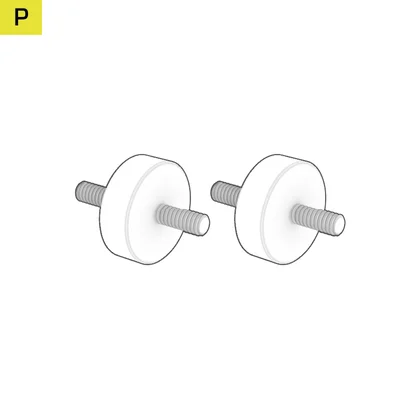
Elgato 多功能安装适配器(2 个)
elgato 柔性臂适配器
- 使用银色 1/4" 20 银色 T 形螺母(E2),将 Elgato 柔性臂适配器(O) 安装到 T 形槽导轨(2) 上,或安装到转角支架(8) 顶部的预螺纹孔上,或安装到显示器臂安装支架(E) 顶部的预螺纹孔上。

elgato 多功能安装适配器
- 首先卸下 Elgato Multi 安装产品底部的三颗螺丝。
- 使用银色 1/4" 20 银色 T 形螺母(E2) 将 Elgato 多功能安装适配器(P) 安装到 T 形槽导轨(2) 上,或安装到转角支架(8) 顶部的预螺纹孔中。

办公桌加长杆和侧面挂板套件 - 部件清单
要增加 Platform 书桌的面积,您可以在一侧或两侧加装扩展板或挂板(需单独购买)。

大宗物品清单

办公桌加长杆(2x)

T 型支架(2 个)

侧面挂板(2x)
小物品清单
M6 10 毫米螺栓(12 个)

挂板按钮安装架(3x)
M6 黑色 T 形螺母(12 个)

短钉板钩(3x)

长钉板钩(3x)

L 形钉板钩(4 个)

宽挂板钩(2 个)

挂板多钩(1 个)
直电缆通道(1x)
弧形电缆通道(1x)
带扣魔术贴(5x)

拉链扎带(10x)
3 毫米六角工具(1x)
5 毫米六角工具(1x)
组装加长杆和挂板套件
1: 安装桌面加长杆
为完成这一步骤,将使用以下硬件和工具:

办公桌加长杆(2x)

M6 10 毫米螺栓(6 个)

M6 黑色 T 形螺母(6 个)
5 毫米六角工具(1x)
- 将三个 M6 黑色 T 形螺母(E1) 插入桌子下面的侧轨,如下图所示,粗竖线所标示的位置。
- 仅将两个 M6 10 毫米螺栓(B) 插入顶部的两个黑色 M6 T 形螺母(E1),并将其拧入大约一半。

- Place the Desk Extension (12) over the half-screwed M6 10mm Bolts (B).
- Push the Desk Extension (12) so that the M6 10mm Bolts (B) wedge into the narrower grooves of the mounting holes.

- Insert an M6 10mm Bolt (B) into the bottom mounting hole of the Desk Extension (12).
- Secure the Desk Extension (12) by tightening all three M6 10mm Bolts (B).

- Repeat the process if you wish to mount an additional Desk Extension on the opposite side of the desk.
2: 安装侧面挂板
为完成这一步骤,将使用以下硬件和工具:

T 型支架(2 个)

侧面挂板(2x)

M6 10 毫米螺栓(12 个)
M6 黑色 T 形螺母(6 个)

短钉板钩(3x)

长钉板钩(3x)

L 形钉板钩(4 个)
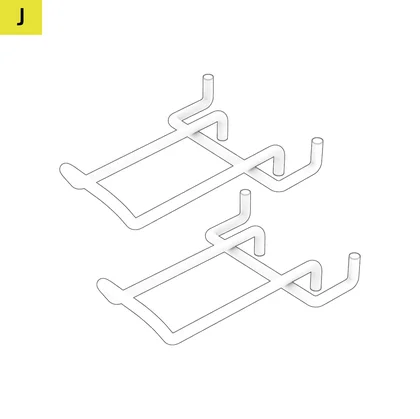
宽挂板钩(2 个)

挂板多钩(1 个)
3 毫米六角工具(1x)
- 将三个 M6 黑色 T 形螺母(E1) 插入桌子下面的侧轨,如下图所示,粗竖线所标示的位置。

- Secure the T-Support (13) to the M6 Black T-Nuts (E1) using three M6 10mm Bolts (B).
- Align the Pegboard (14) to the T-Support and secure it using three M6 10mm Bolts (B), as shown on the image below.

- Repeat the process if you wish to mount an additional Side Pegboard (14) on the opposite side of the desk.
- Mount the hooks onto the Side Pegboard (14) by inserting them through the holes. You can use any position on the Pegboard.
额定功率
输入电压AC100-240V
频率:50-60Hz/4A(最大值)
保修

平台系列办公桌的保修期为 5 年。
法律
©2023-2025 CORSAIR MEMORY, Inc.商标属于其各自所有者。保留所有权利。
相关内容